
Key Takeaways
- Convert existing Trello cards into reusable board templates to standardize recurring procedures, descriptions, and operational checklists.
- Establish access to your designated Trello board and outline required task components before converting individual cards into templates.
- Follow five procedural steps to format starter cards, enable template status, generate task copies, assign details, and organize lists.
- Generate a sample card from your new template to verify that standard checklists, labels, and descriptions copy over accurately.
Trello card templates standardize recurring tasks by preserving titles, checklists, and descriptions across boards. Converting an established card into a template enables team members to generate consistent task items rapidly.
For plan limits and team seat pricing behind this workflow, read our Trello review or connect Trello to AI agents in Trello API and MCP.
Key steps
What do you need before starting in Trello?
Trello requires the following workspace setup before you begin:
- Sign in to Trello and open the board where the template will be used.
- Create or choose a card with the reusable title, description, checklist, and other details you want.
- Use Trello on the web to create or edit the template. Template creation and editing are not available in the mobile app.
How do you complete the steps in Trello?
Follow these 5 steps in Trello in order:
Prepare the example card
Create or open a card that contains the reusable information, such as a standard project kickoff title, description, or checklist. Review the details before converting it because the template will serve as the starting point for future cards.
Build the card around information that should be true for every use, such as a standard checklist or handoff description. Leave changing details, such as a specific customer name or deadline, for the new card. This reduces cleanup and helps prevent stale project details from being copied.
Make the card a template
Open the card and select its ellipsis (⋯) menu. Choose Make template. Trello marks it as a template card. Dates and completion status are hidden on templates and are not copied to new cards.
After choosing Make template, check both the template identification on the card back and the badge on its front. Dates and completion status are hidden on templates and are not copied to new cards, so use the description or checklist for reusable timing guidance instead of relying on a template date.
Create a fresh card from the template
Open the template and select Create card from template. Alternatively, go to the bottom of any list on the board and select Create from template. Choose the template to create a separate card from it.
When creating a card from the template, choose the destination list based on where the new work should begin. If you use the list’s Create from template control, verify that you are in the intended list before choosing the template. This matters when the board has separate lists for different teams or work stages.
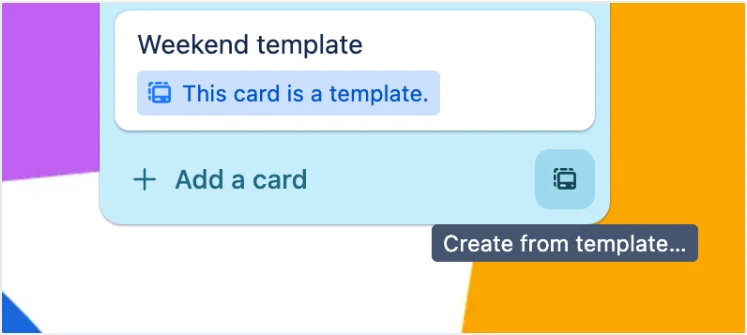
At a list’s bottom, use Create from template to start a new card from a saved template. Screenshot source Give the new card its task-specific details
Rename the new card for the specific work, then update its description, checklist, or other details as needed. Changes made to the template later do not update cards that were already created from it.
Treat the new card as its own work item. Rename it and replace any example text that could be mistaken for current project details. If the template checklist includes steps that do not apply to this instance, edit the new card’s checklist so its completion state reflects the actual work.
Hide the template if it clutters the list
If you do not want the template visible among regular cards, open the template card and select Hide from list. This archives the template from the list view while keeping it available through Create from template or the board menu’s archived items.
How does this Trello setup work in practice?
Worked example: reusable kickoff card for client projects
A project management team creates a standardized Trello template card containing routine client onboarding checklists to deploy across new board lists.
| Choice | Why it matters | How to check |
|---|---|---|
| Prepare a card with a reusable kickoff title, description, and checklist | These fields describe the repeatable process, while client-specific details can be added later. | Review the card for old client names, dates, or completion marks before making it a template. |
| Select Make template from the card’s ellipsis menu | This converts the prepared source card into the reusable starting point on that board. | Confirm the card back identifies it as a template and its front shows the template badge. |
| Open the “To do” list and choose Create from template | Starting the card in the intended list avoids extra movement when work begins. | Confirm the new card appears in “To do” and is separate from the template. |
| Rename the new card for the client and update its description | The copied card needs task-specific details before the team acts on it. | Check that the title and description name the current project, not the template example. |
| Review the copied checklist and assign real dates separately if needed | Template dates and completion status are not copied, so the new card needs current project timing and progress details. | Confirm the new card’s checklist reflects actual work and does not rely on hidden template dates. |
Creating new client cards from the master template populates intake checklists immediately, preserving baseline project structure across the board.
How do you verify your result in Trello?
Confirm the template badge appears on the source card and that creating from it produces a separate card. Reuse the template for repeated work, and update the template itself when you want future cards to start differently.
| Step | What you should see |
|---|---|
| Prepare the example card | The card contains the reusable details you want new cards to start with. |
| Make the card a template | The card back identifies it as a template, and its front has a template badge. |
| Create a fresh card from the template | A new card appears based on the template, separate from the template card. |
| Give the new card its task-specific details | The new card has its own task title and the appropriate copied starting details. |
| Hide the template if it clutters the list | The template no longer appears in the list, but remains selectable from Create from template. |
Related Trello guides include How to add labels to Trello cards and How to attach a file to a Trello card.
Which official Trello sources were checked?
Every step and limit in this Trello guide was verified against official documentation on 21 Nov 2026 following how we check figures, alongside more walkthroughs in our Trello tutorials hub:
How do you troubleshoot common Trello issues?
Will editing a template update cards already made from it?
No. Trello says changes to a template do not update existing cards created from it.
Can I delete a template card without losing the original card?
Deleting a template also deletes the original card. To turn it back into a regular card, open it and select Template from the card actions.
I used Create card from template, but the new card is not where I expected. What should I check?
Locate the new card on the board and confirm its list. If it is in the wrong place, move that new card to the intended list and verify its title and copied details. For future cards, start from the intended list’s Create from template control.
A template edit did not change an existing project card. Is it broken?
No. Changes to the template do not update cards already created from it. Update the existing project card directly if it needs the new wording or checklist, then keep the template current for future cards.
 Reviewed byDanny Kirk
Founder of ReddiReach.
 Checked byAndrés Felipe
Digital designer and marketer.
Every figure is checked against the vendor's own page. Read our editorial standards.