
Key Takeaways
- The Miro Timer runs a shared visual and audio countdown for everyone viewing or editing the board.
- Your board must sit in a Starter, Business, Enterprise, or Education team, and you need owner, co-owner, or editor rights to start it.
- Open Timer from the top-right toolbar, set the duration and optional music, start or extend the countdown, and minimize or stop when finished.
- Verify the timer works when all board collaborators see the live countdown and hear the completion chime at zero.
Keep brainstorming sprints, silent ideation rounds, and workshop breakouts on schedule with a synchronized countdown clock on your Miro board. Teams use the built-in timer so every collaborator hears optional background music, sees live remaining time, and gets an end-of-round alert together.
For plan limits and team seat pricing behind this workflow, read our Miro review or connect Miro to AI agents in Miro API and MCP.
Key steps
What do you need before starting in Miro?
Miro requires the following workspace setup before you begin:
- A Miro board stored in a Starter, Business, Enterprise, or Education team (unavailable in Free teams).
- Board owner, co-owner, or editor permissions in the browser or desktop app.
- Timer installed and permitted for your workspace (Team Admins or Enterprise Company Admins may restrict or install it).
How do you complete the steps in Miro?
Follow these 4 steps in Miro in order:
Open Timer from the collaboration toolbar
Open your Miro board on desktop or browser and check the collaboration toolbar in the top-right corner. Click the Facilitation tools and Reactions icon, then click the Timer button to launch the countdown widget.
Viewers, commenters, and visitors cannot set up the timer. Once an editor starts it, all registered users and non-registered visitors with edit access see the running clock.
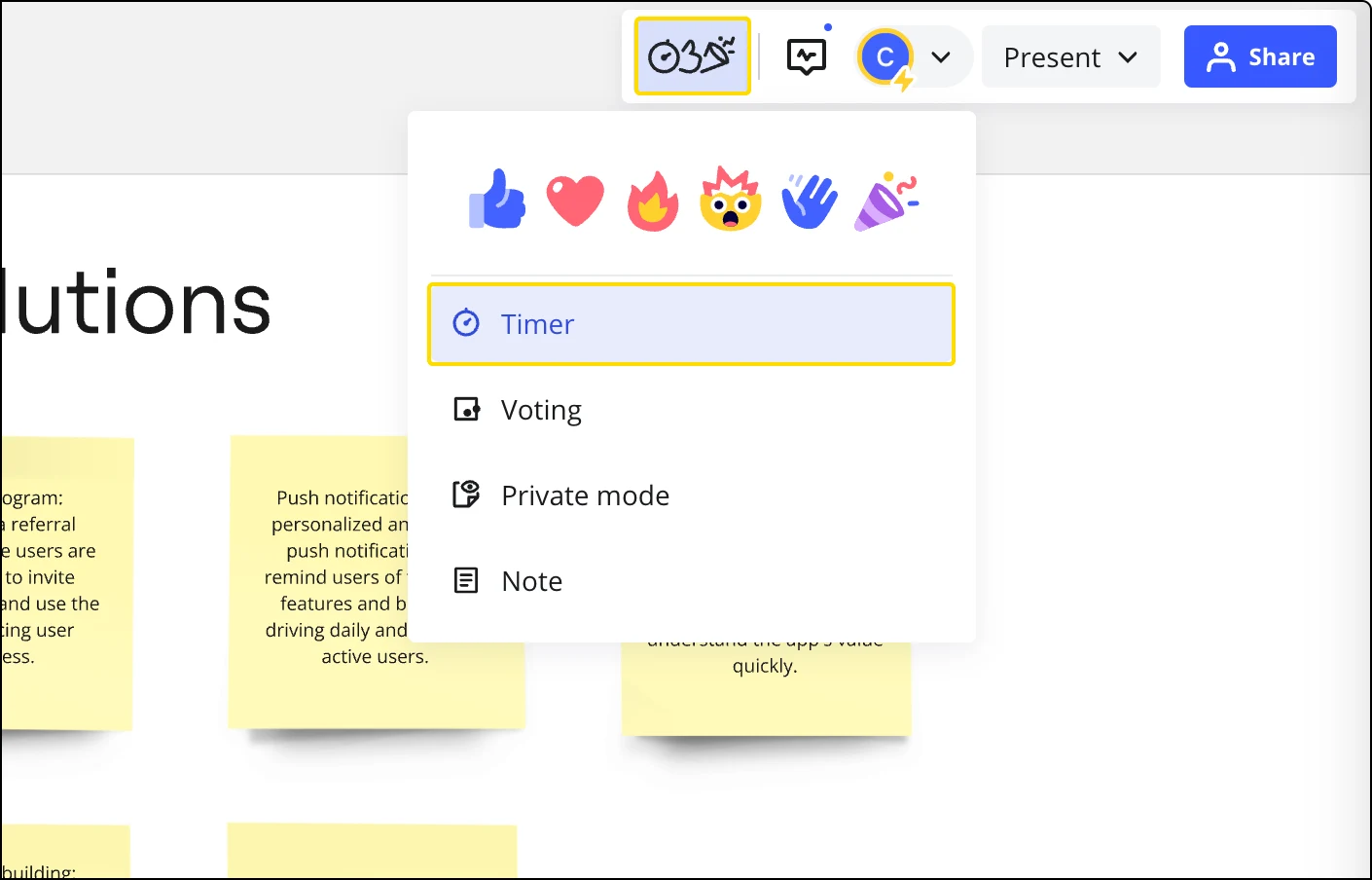
Select the Timer button under the Facilitation tools and Reactions icon in the top-right toolbar. Screenshot source Set countdown duration and optional music
Enter your target countdown duration directly or click the + and - controls to adjust the time. Open the built-in music list inside the timer widget if you want royalty-free music to play while the clock runs.
Light music helps remote participants tell the session is active during silent ideation. Click the mute control anytime while music plays without stopping the clock.
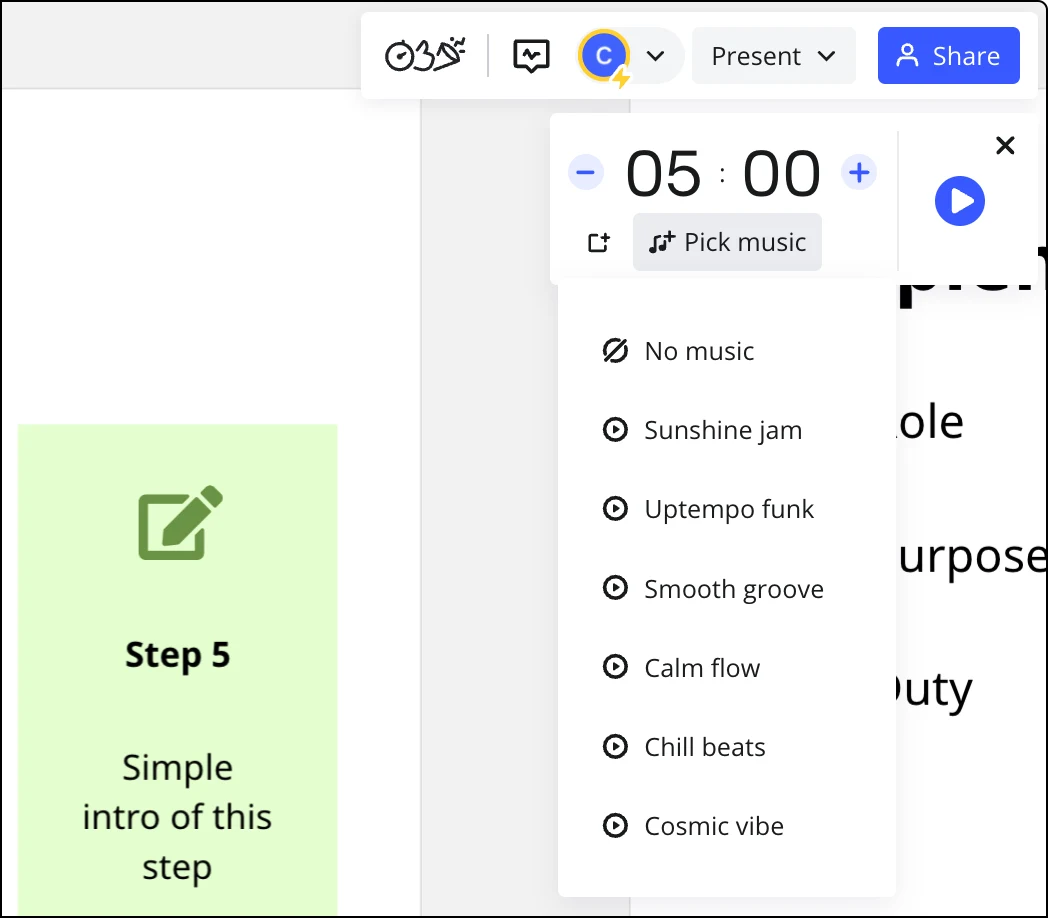
Choose a royalty-free background track from the built-in music list before clicking the blue Play button. Screenshot source Start, pause, or extend the live countdown
Click the blue Play button to start the countdown for everyone on the board simultaneously. During the session, click +1m or +5m to add extra time, or click Pause to hold the clock during questions.
Other board editors invited by email or belonging to your Miro team or space can also pause, stop, or add time. Designate one facilitator ahead of time so two editors do not extend the clock twice.
Minimize or stop the timer when finished
Minimize the timer widget while working on the canvas so the top-right toolbar icon displays remaining time unobtrusively. Click Stop inside the widget to end and reset the timer early, or let it reach zero.
If you enter full presentation mode, the active timer pops up in the top-left corner automatically. When time expires, every collaborator receives a visual notification and chime.
How does this Miro setup work in practice?
Worked example: Timeboxing a sprint retrospective ideation round
A scrum master running a remote retrospective on a Starter plan wants eight engineers to write sticky notes silently for five minutes.
| Choice | Why it matters | How to check |
|---|---|---|
| Set 05:00 and pick a royalty-free track | Establishes a five-minute writing window with calm background audio. | The widget shows 05:00 and the track name before starting. |
| Click +1m with forty seconds left | Gives teammates sixty additional seconds to finish typing. | Everyone's clock updates from 00:40 to 01:40 immediately. |
| Minimize the widget while grouping sticky notes | Clears canvas space while keeping time visible on the toolbar icon. | The toolbar badge counts down to zero and plays the chime. |
All eight engineers wrap up ideation on cue when the chime sounds, keeping the retrospective on schedule.
How do you verify your result in Miro?
Confirm your timer works by running a ten-second test countdown, checking the minimized toolbar badge, and verifying the closing chime plays. Next, follow timed ideation rounds with a Miro Voting session so your team can rank top sticky notes.
| Step | What you should see |
|---|---|
| Open Timer from the collaboration toolbar | The Timer widget opens beneath the top-right collaboration toolbar. |
| Set countdown duration and optional music | The timer displays your chosen minutes and seconds along with the selected music option. |
| Start, pause, or extend the live countdown | The timer counts down live for all participants and adds one or five minutes immediately when clicked. |
| Minimize or stop the timer when finished | The minimized toolbar icon tracks remaining time until the zero chime and visual alert trigger. |
Related Miro guides include How to present boards with Interactive Presentation Mode in Miro and How to set up an anonymous voting session in Miro.
Which official Miro sources were checked?
Every step and limit in this Miro guide was verified against official documentation on 27 Nov 2026 following how we check figures, alongside more walkthroughs in our Miro tutorials hub:
How do you troubleshoot common Miro issues?
Why is the Timer option missing from my Miro board toolbar?
Verify the board sits inside a Starter, Business, Enterprise, or Education team rather than a Free team, and confirm you hold editor permissions. If it is still missing, ask your Team Admin to install the timer or check with your Enterprise Company Admin.
Can other board editors pause or add minutes to my countdown?
Yes, board editors invited via email or holding access through a Miro space or team can pause, stop, or add +1m and +5m. Viewers and public visitors can watch the countdown but cannot control it.
Where does the timer appear if I enter full presentation mode?
Entering full-screen presentation mode keeps the active countdown running without interruption. Miro moves the timer to the top-left corner of the presentation screen automatically.
 Reviewed byDanny Kirk
Founder of ReddiReach.
 Checked byAndrés Felipe
Digital designer and marketer.
Every figure is checked against the vendor's own page. Read our editorial standards.