
Key Takeaways
- Miro Voting runs a timed, anonymous ballot over a selected board area and ranks winning objects automatically.
- Only team members with board editing rights in a Starter, Business, Enterprise, or Education team can set up voting.
- Open Voting, crop the voting area and filters, launch or save the ballot, monitor progress, and publish results.
- Confirm completion when the Results tab ranks the top three items and optionally keeps vote badges visible on the board.
Collect structured, anonymous votes on sticky notes, cards, or shapes directly on a Miro board so teams can prioritize ideas quickly. Facilitators use Miro Voting to filter eligible objects, cap votes per participant, and pin ranked results onto the canvas.
For plan limits and team seat pricing behind this workflow, read our Miro review or connect Miro to AI agents in Miro API and MCP.
Key steps
What do you need before starting in Miro?
Miro requires the following workspace setup before you begin:
- A Miro board stored in a Starter, Business, Enterprise, or Education team workspace.
- Team member status with board editing rights on browser, desktop, or tablet (guests and visitors cannot start voting).
- Separate sticky notes or individual text boxes for each candidate option.
How do you complete the steps in Miro?
Follow these 5 steps in Miro in order:
Open Voting from the collaboration toolbar
Click Facilitation tools and Reactions in the top-right collaboration toolbar and select Voting. The Voting panel opens on the right side of your board.
Place every candidate option into its own sticky note or separate text box first, because Miro counts an entire text box as a single votable object.
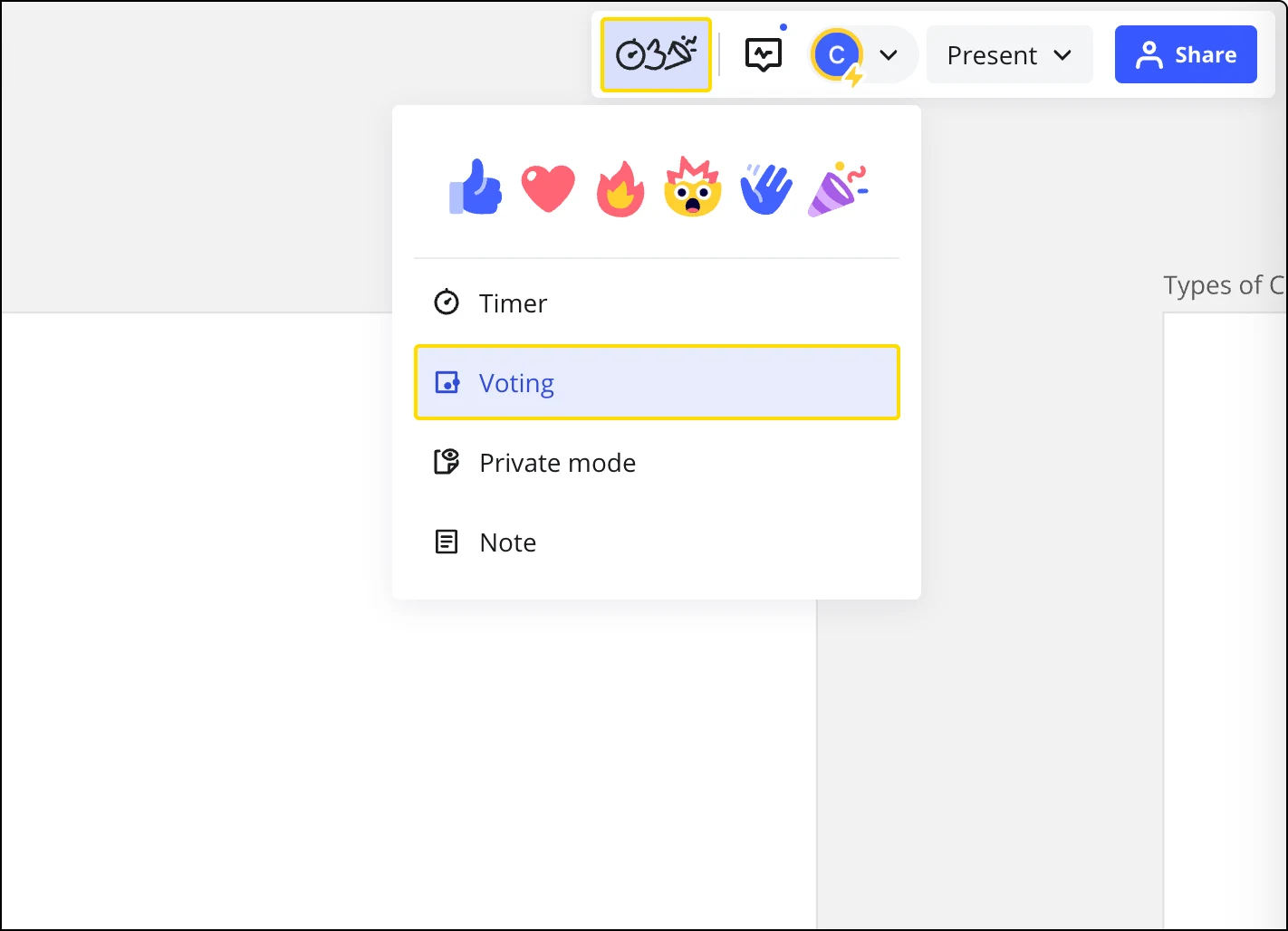
Click the Voting icon under Facilitation tools and Reactions in the top-right collaboration toolbar. Screenshot source Define voting area, filters, and vote limits
Resize the voting area box on the canvas and filter eligible subcategories like sticky notes. Set votes per person (up to 99) and duration (minutes, hours, or days) with + and -, and optionally toggle on one vote per object.
Enabling one vote per object stops participants from stacking all votes onto one item. All ballots remain strictly anonymous.
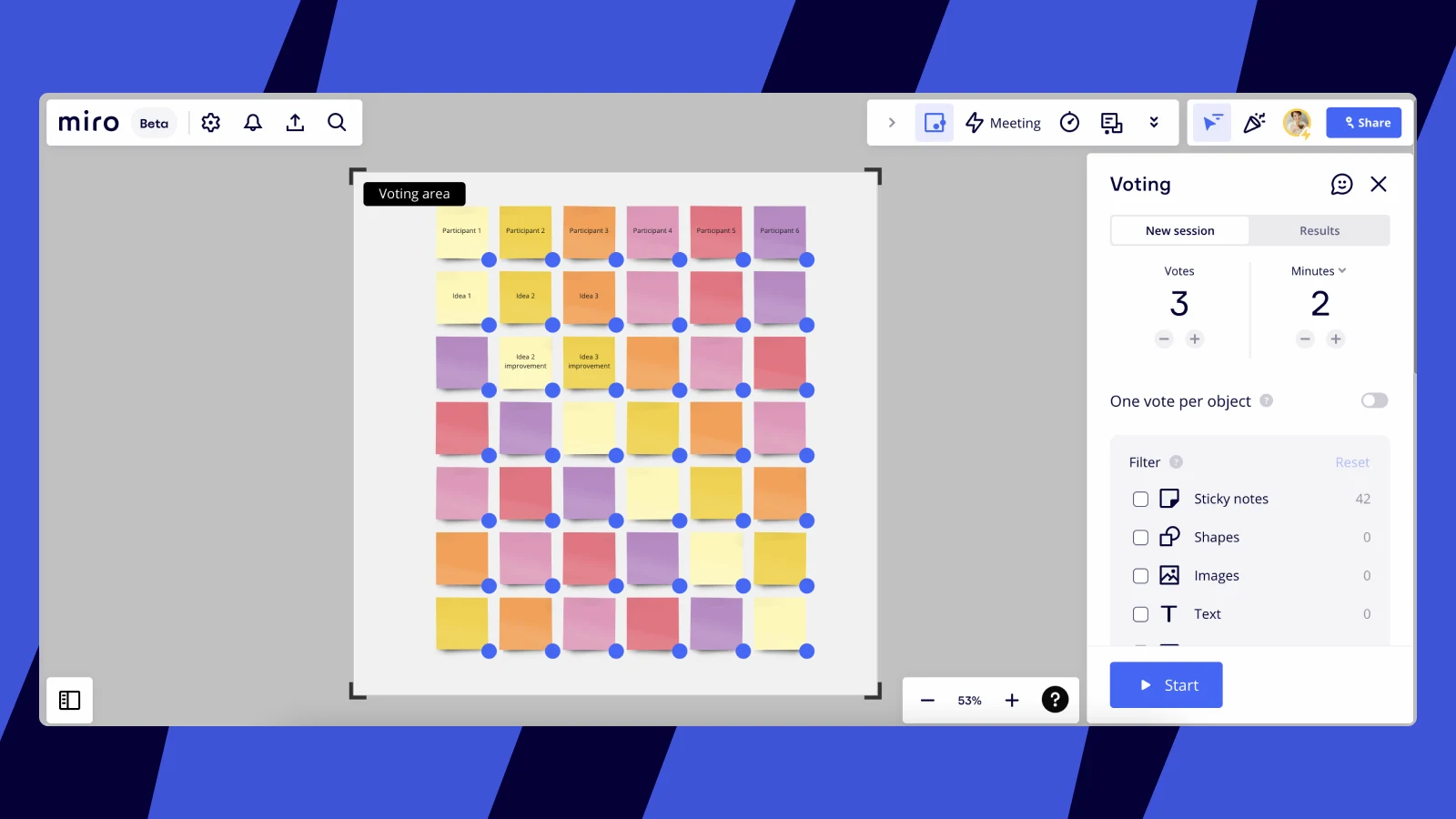
Adjust the voting area boundary, object filter, votes per person, and session duration before clicking Start. Screenshot source Start voting now or save to the board
Click Start to launch the live ballot immediately, or click Add to board to save the configured session for a later presentation.
All board collaborators see a pop-up showing remaining time with an option to join. Anyone who skips or closes the panel can rejoin via the Voting icon in the top-right toolbar.
Track completion and adjust live timing
Monitor progress in the top-right corner while voters click + and - on objects and click I'm done when finished. Click Participants to view completion status and votes cast per person, or add minutes and end early.
Participant tracking never exposes individual choices. To reset a ballot, end the current session and start a new one.
Review ranked results and pin tallies
Once voting ends, view the top three winners and click See all results for the full list. In the Results tab, enable Show results on the board to keep badges visible, or open past sessions to rename or delete results.
Keeping tallies on the canvas speeds up action planning. Take a screenshot for external records, since Miro does not export voting files.
How does this Miro setup work in practice?
Worked example: Prioritizing research ideas across time zones
A distributed UX team on a Business plan asks designers across three time zones to pick top priorities from thirty sticky notes over one day.
| Choice | Why it matters | How to check |
|---|---|---|
| Crop the area and filter to sticky notes | Excludes headers and connectors from receiving votes. | Plus badges appear only on the thirty sticky notes. |
| Set 5 votes, 1 day, and one vote per object | Supports async voting across five distinct ideas per person. | The panel shows 5 votes, 1 day, and single-vote active. |
| Enable Show results on the board in Results | Leaves final tallies pinned to winning sticky notes. | Vote counts stay visible after closing the panel. |
Designers vote asynchronously within twenty-four hours and open See all results the next morning to scope winners.
How do you verify your result in Miro?
Verify your setup by checking that the Voting icon displays remaining time during a test ballot and See all results ranks items accurately. Toggle Show results on the board so your team can move winning notes into an action frame.
| Step | What you should see |
|---|---|
| Open Voting from the collaboration toolbar | The Voting panel opens on the right with a resizable voting area box on the canvas. |
| Define voting area, filters, and vote limits | Filtered objects inside your cropped region highlight as votable and rules appear in the panel. |
| Start voting now or save to the board | Collaborators see the join prompt and plus icons appear beside eligible objects. |
| Track completion and adjust live timing | Clicking Participants shows voter completion while keeping selections anonymous. |
| Review ranked results and pin tallies | See all results lists ranked items and vote badges remain visible on the board. |
Related Miro guides include How to present boards with Interactive Presentation Mode in Miro and How to run a collaborative session timer in Miro.
Which official Miro sources were checked?
Every step and limit in this Miro guide was verified against official documentation on 27 Nov 2026 following how we check figures, alongside more walkthroughs in our Miro tutorials hub:
How do you troubleshoot common Miro issues?
Why can I edit the board in Miro but not start a voting session?
Only registered members of the paid or Education team that owns the board can set up voting. Guests and visitors can vote once started, so ask a team member to launch it.
Why are voters selecting a whole paragraph box instead of single lines?
Miro attaches votes to an entire text box rather than separate lines inside it. Split each option into its own text box or sticky note first.
How does a participant rejoin after skipping the voting pop-up?
Click the Voting icon showing the time left in the top-right toolbar while the ballot is active. That reopens the session so they can cast or change votes.
 Reviewed byDanny Kirk
Founder of ReddiReach.
 Checked byAndrés Felipe
Digital designer and marketer.
Every figure is checked against the vendor's own page. Read our editorial standards.