
Key Takeaways
- Publish custom report collections in Google Analytics to organize essential business dashboards directly within the shared left navigation.
- Obtain Administrator or Editor access to the Google Analytics property to modify the shared reporting Library and navigation structures.
- Follow five straightforward steps to initiate a collection, name topics, assign detailed reports, save changes, and publish navigation.
- Verify that newly published report collections appear immediately in the primary navigation menu for all authorized Google Analytics users.
Build and save a report collection, then publish it so it appears in the property's left navigation for everyone.
For plan limits and team seat pricing behind this workflow, read our Google Analytics 4 review or connect Google Analytics 4 to AI agents in Google Analytics 4 API and MCP.
Key steps
What do you need before starting in Google Analytics 4?
Google Analytics 4 requires the following workspace setup before you begin:
- Administrator or Editor access to the Google Analytics property, including permission to view Library.
- A clear collection name and the topics and reports you want to make available. Reports must already exist in the report library before you can add them.
- A plan for the collection structure: each collection can have up to 5 topics, and each topic can contain up to 10 reports. A topic can have only one overview report.
How do you complete the steps in Google Analytics 4?
Follow these 5 steps in Google Analytics 4 in order:
Open Library and start a collection
In Google Analytics, open Library at the bottom of the left navigation. Select Create new collection. Choose Blank for an empty collection, or choose a template if one suits the reporting structure you need. A blank collection is useful when you want to decide the topics and report order yourself.
Name the collection and create topics
Enter a descriptive value in Collection name. Use a name that will help property users recognize what the collection contains. Select + Create new topic, enter a topic name, and repeat for any other sections you need. Keep the topic count within the five-topic limit.
Add reports and arrange the collection
Drag reports from the card on the right into the desired topic on the collection card. Add detail reports as needed. You can also add an overview report to act as that topic's dashboard, but each topic can have only one overview report. Drag topics or reports to change their order. Confirm each topic stays within the ten-report limit.
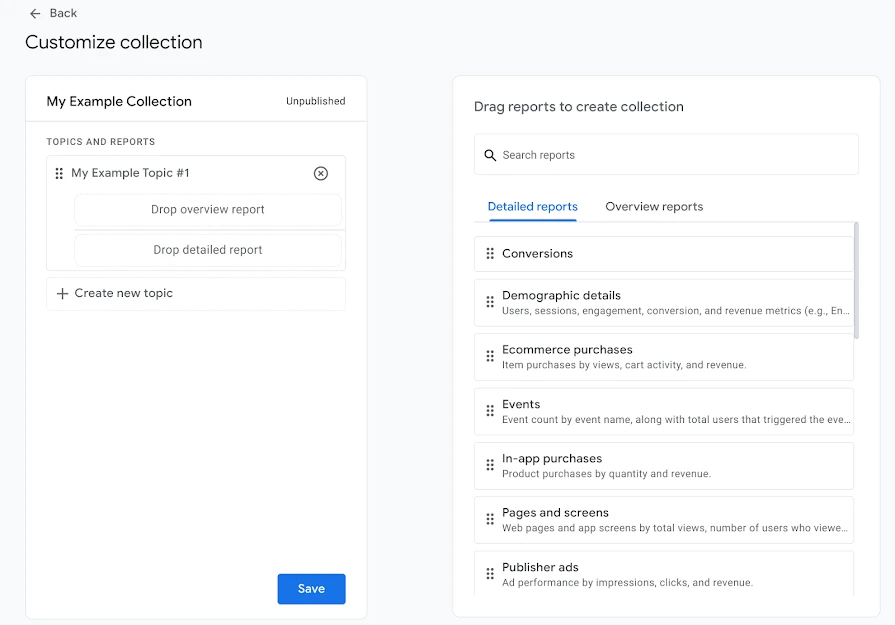
The visible editor shows where to place overview and detailed reports under a topic before saving. Screenshot source Save the collection
Select Save in the editor. Saving stores the collection configuration, but does not yet make it available to everyone in the property's left navigation. Return to Library if you are not already there, and locate the collection card you just saved.
Publish the collection
On the collection card, select More, then select Publish. Publishing makes the saved collection available in the left navigation of the Google Analytics property. If the collection is already published, review its card and use the available edit action when you need to change the report arrangement, then save your changes.
How does this Google Analytics 4 setup work in practice?
Worked example: creating a collection for a small marketing team
A digital marketing team wants a dedicated navigation entry for recurring performance dashboards within their shared analytics workspace.
| Choice | Why it matters | How to check |
|---|---|---|
| Name the collection “Marketing review”. | The name makes its intended audience and use apparent in the collection list. | The editor displays the chosen collection name. |
| Create topics for “Acquisition” and “Engagement”. | Separating the two areas gives users a clear place to look for each set of reports. | Both topics appear in the collection card, and the total remains within the topic limit. |
| Drag existing detail reports into the matching topics and add an overview only where a topic needs a dashboard. | This uses reports already available in the library and respects the one-overview-per-topic rule. | The reports are under the intended topics, and neither topic exceeds its report limit. |
| Save, then publish from the collection card. | Saving keeps the arrangement. Publishing makes the collection available in navigation. | The collection appears in the property's left navigation after publication. |
Next decision: ask the team which additional existing reports belong in each topic, then edit and save the collection if the reporting needs change.
How do you verify your result in Google Analytics 4?
A published collection groups the reports you selected under named topics in the property's left navigation, making that structure available to property users. Saving and publishing are separate actions: the saved editor configuration becomes shared navigation only after publication.
| Step | What you should see |
|---|---|
| Open Library and start a collection | The collection editor opens and shows a collection card where you can name the collection and arrange topics and reports. |
| Name the collection and create topics | The editor shows the intended collection name and the topics you plan to publish, with no more than five topics. |
| Add reports and arrange the collection | Each topic contains the intended reports in the order you want, and there is no more than one overview report in any topic. |
| Save the collection | The collection card appears in Library with the name you entered. |
| Publish the collection | The collection is published and appears in the property's left navigation. If Library is missing, check that your account has the required edit permission. |
Related Google Analytics 4 guides include Compare date ranges in Google Analytics reports and Find GA4 events in DebugView.
Which official Google Analytics 4 sources were checked?
Every step and limit in this Google Analytics 4 guide was verified against official documentation on 21 Nov 2026 following how we check figures, alongside more walkthroughs in our Google Analytics 4 tutorials hub:
How do you troubleshoot common Google Analytics 4 issues?
Why can I not see Library?
The source states that Administrator or Editor access is needed to view Library. Ask a property administrator to check your access if the option is absent.
Why is a report missing from the collection editor?
The report needs to exist in the report library before it can be added. Locate or create the report first, then return to the collection and drag it under a topic.
Why does the saved collection not appear in the left navigation?
A saved collection must also be published. In Library, locate its card, select More, and choose Publish.
 Reviewed byDanny Kirk
Founder of ReddiReach.
 Checked byAndrés Felipe
Digital designer and marketer.
Every figure is checked against the vendor's own page. Read our editorial standards.