
Key Takeaways
- Examine competitive search market share and keyword distributions using the Rankings Distribution report in Semrush Position Tracking.
- Configure a Semrush Position Tracking campaign with target keywords and competing domains before analyzing distribution metrics.
- Follow five analytical steps to set competitor scope, define reporting dates, assess top-level visibility, and drill into keyword tiers.
- Click specific position tiers in Semrush to verify the exact ranking URLs and underlying queries driving visibility changes.
Read the Rankings Distribution report to compare visibility and estimated traffic with competitors, then use position-range counts to find the keywords behind those totals.
For plan limits and team seat pricing behind this workflow, read our Semrush review or connect Semrush to AI agents in Semrush API and MCP.
Key steps
What do you need before starting in Semrush?
Semrush requires the following workspace setup before you begin:
- A configured Semrush Position Tracking campaign with tracked keywords and competitors.
- A date range appropriate to the change you want to review.
- A comparison question, such as overall performance or changes in top 10 rankings.
How do you complete the steps in Semrush?
Follow these 5 steps in Semrush in order:
Open Rankings Distribution
In Position Tracking, select Rankings Distribution. The report compares your campaign performance with competitors across Google organic position ranges including Top 3, Top 10, Top 20, and Top 100. The screenshot shows a Position Tracking campaign with a Rankings Distribution report view and comparison controls.
Set the competitor scope and date range
At the top of the report, choose whether to view all competitors or the domains in the input fields. The input fields can be used to compare specific URLs, subdomains, or subfolders. Set the date range for the period you want to assess. These choices affect the comparison, so note them before interpreting any differences.
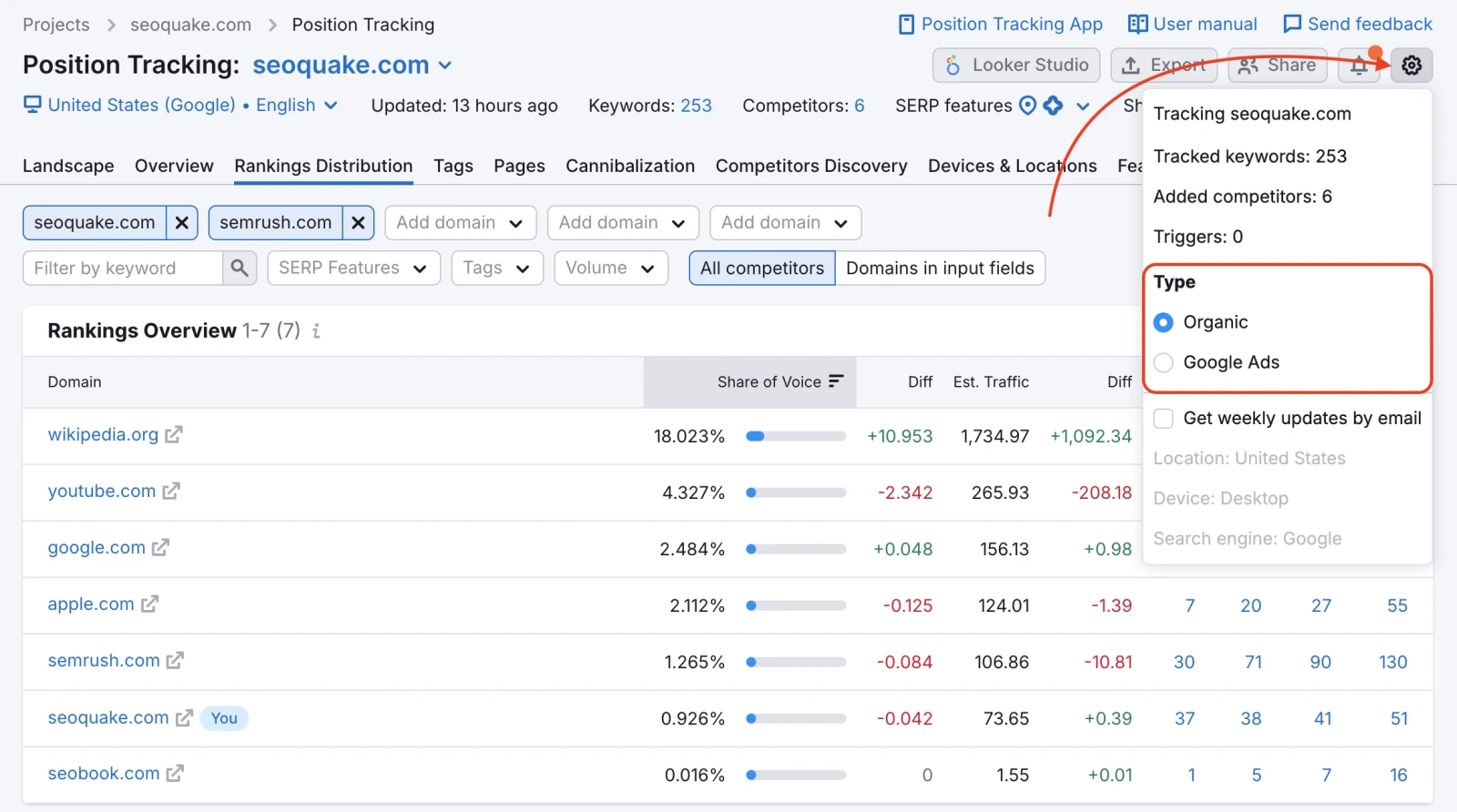
The visible campaign selector, competitor-scope options, and overview table orient the reader to the comparison settings. Screenshot source Read the overview comparison
Start with the overview table’s Visibility and Estimated Traffic columns. Competitors are ranked by current attention in the report, and the table can be sorted by difference in Visibility or Estimated Traffic for the selected period. Use the difference sort to locate larger rises or falls, then check the date range before attributing meaning to the movement.
Inspect a position range
Review the separate Top 3, Top 10, Top 20, and Top 100 tables. These show how many campaign keywords each domain holds in each range. Click a number in a range to open a filtered Rankings report containing the corresponding keywords. This is the step that turns the distribution count into a list you can inspect.
Follow ranking changes to keywords
In a position-range table, review the New, Lost, Improved, and Declined columns. Click a count to open a filtered Rankings report for the keywords that changed in that category during the selected period. Competitor losses or declines can point to terms worth reviewing, while new or improved terms show where competitors gained ground.
How does this Semrush setup work in practice?
Worked example: investigating a competitor’s Top 10 movement
An analyst reviews competitor search visibility shifts in Semrush to identify which specific keyword movements drove changes in top-tier ranking counts.
| Choice | Why it matters | How to check |
|---|---|---|
| Set the date range and competitor scope before reading the table. | The observed comparison depends on both selections. | The intended period and competitor set are displayed. |
| Review the competitor’s Top 10 count and its New, Lost, Improved, or Declined figures. | The range count shows scale, while the change columns show movement over the selected period. | The analyst records which specific column prompted investigation. |
| Click the relevant count to open the filtered Rankings report. | The report exposes the keywords behind the selected aggregate. | The filtered view corresponds to the competitor, position range, and change category. |
| Choose keywords for a closer review based on the list and ranking changes. | The list provides a concrete basis for further competitive analysis. | The follow-up focuses on observed keywords rather than inferred causes. |
The next decision is which of the surfaced keywords merits closer review based on relevance and the competitor’s ranking change.
How do you verify your result in Semrush?
Rankings Distribution gives a summary of competitive performance by visibility, estimated traffic, and position range. The linked Rankings reports show the terms behind a count or change. Use them to choose a focused follow-up analysis, rather than treating a distribution shift as an explanation of its cause.
| Step | What you should see |
|---|---|
| Open Rankings Distribution | The Rankings Distribution report is active for the intended campaign. |
| Set the competitor scope and date range | The selected competitor scope and date range match the question you are answering. |
| Read the overview comparison | You can identify the compared domains, the selected period, and whether the displayed order reflects current metrics or a difference sort. |
| Inspect a position range | You have opened the filtered Rankings report from the specific position-range count you wanted to investigate. |
| Follow ranking changes to keywords | The filtered report reflects the change category and time period you selected. |
Related Semrush guides include How to add competitors in Semrush Position Tracking and How to build a Semrush My Reports report from a template.
Which official Semrush sources were checked?
Every step and limit in this Semrush guide was verified against official documentation on 21 Nov 2026 following how we check figures, alongside more walkthroughs in our Semrush tutorials hub:
How do you troubleshoot common Semrush issues?
Why do competitor counts change when I change the scope?
The report can compare all competitors or only domains in the input fields. Check the selected scope and input targets, then compare like-for-like views.
What does a position-range number represent?
It is the number of campaign keywords a domain holds in that range, such as Top 10. Click it to view the corresponding keywords in a filtered Rankings report.
Why doesn’t sorting by a difference show the biggest current competitor first?
Difference sorting orders by movement over the selected period, while current metric order reflects present values. Check which sort is active and use the one that answers your question.
 Reviewed byDanny Kirk
Founder of ReddiReach.
 Checked byAndrés Felipe
Digital designer and marketer.
Every figure is checked against the vendor's own page. Read our editorial standards.