
Key Takeaways
- Trello Calendar view lets Premium and Enterprise Workspace teams reschedule card deadlines visually by dragging cards between dates without opening individual card settings first.
- Dragging the body of a Trello card to a new calendar cell updates its due date automatically, whereas stretching a card edge creates a multi-day span.
- Boards must belong to a Trello Premium or Enterprise Workspace to access Calendar view, and users need edit access to move scheduled cards.
- Verify completion by opening the moved Trello card to confirm its due date field matches the target calendar slot, especially because external calendars sync only due dates.
Reschedule a card in Trello Calendar view by dragging the card directly to a new target date on the board calendar, which automatically updates its due date. After moving the card, open the card details to verify the updated due date and inspect any separate start dates or multi-day spans.
For plan limits and team seat pricing behind this workflow, read our Trello review or connect Trello to AI agents in Trello API and MCP.
Key steps
What do you need before starting in Trello?
Trello requires the following workspace setup before you begin:
- A Trello board inside a Premium or Enterprise Workspace with Calendar view enabled.
- Edit access to the target Trello board and the specific card you need to reschedule.
- A confirmed target due date agreed upon before adjusting the board schedule.
How do you complete the steps in Trello?
Follow these 4 steps in Trello in order:
Open Calendar view
Open the Trello board containing the task you need to reschedule and switch the board layout to Calendar view. In a standard Month view layout, Trello displays scheduled cards across dated calendar columns so you can review deadlines alongside surrounding deliverables. If your board opens in a different timeframe or layout, adjust the calendar display until the relevant weeks and dated slots are visible on screen.
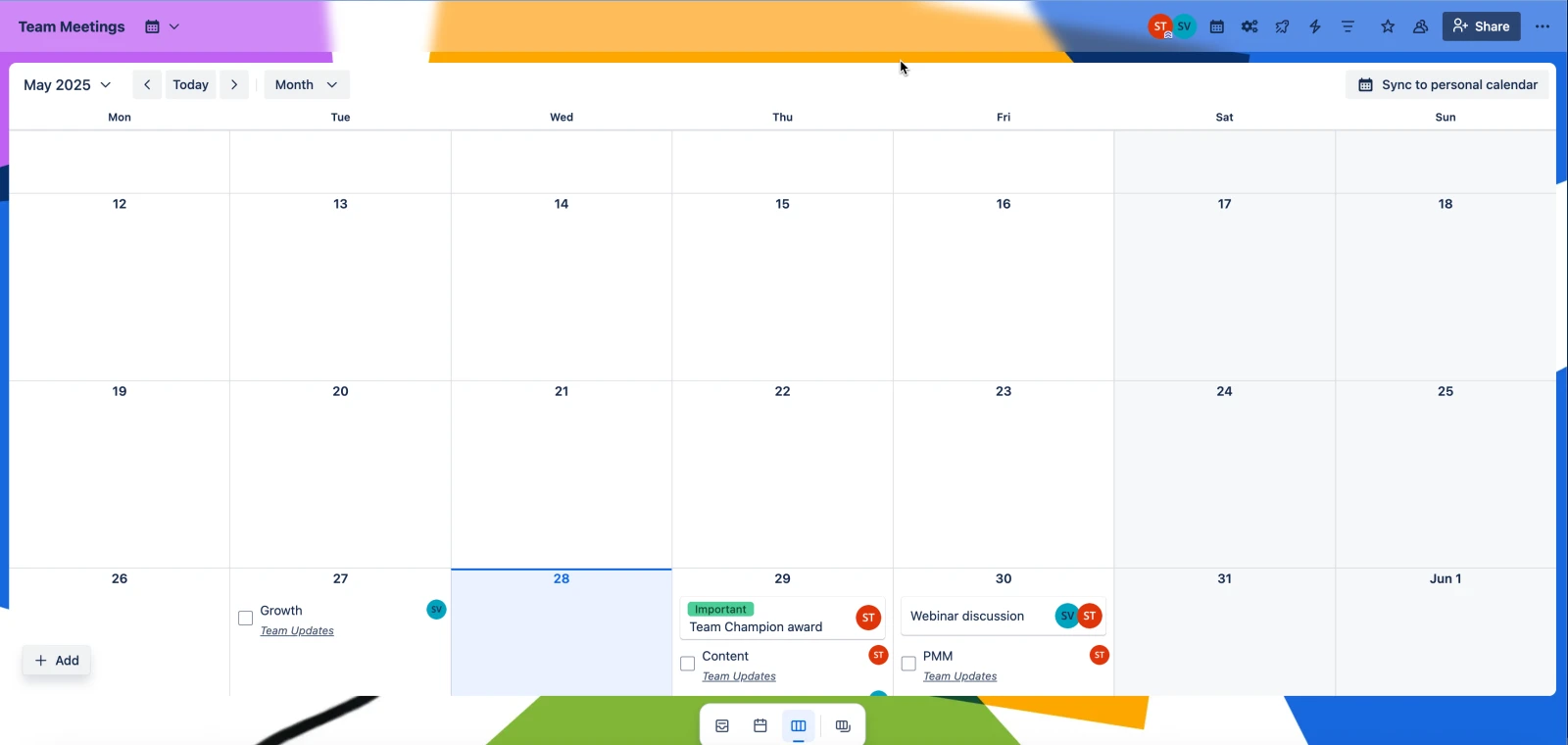
The visible calendar includes a Month selector, dated columns, and cards that can be located before rescheduling. Screenshot source Find the card’s current date
Scan the calendar grid to locate the card on its currently scheduled date. Read the full card title and note its current placement on the board calendar before making any changes, especially on busy boards where similarly named review or production tasks cluster around the same week. Checking the current placement also lets you see whether the card sits on a single day or already spans multiple dates.
Move the card to the intended date
Click and drag the main body of the card from its current slot and drop it onto the new target due date. Trello Calendar view automatically updates the card due date to match the new calendar cell where you release it. Be careful to grab the center of the card rather than dragging its left or right edge, because stretching the card edge sets a start date and end date across multiple days instead of simply shifting a single deadline.
Confirm the updated due date
Click the card to open its detail view and inspect the due date badge directly. Confirm that the recorded due date matches the calendar date where you dropped the card. If the card also uses a start date or spans several days on the calendar, check both dates separately so you know where work begins versus when the final deliverable is due.
How does this Trello setup work in practice?
Example: shifting a client copy review card during a sprint
A content marketing team running a product launch board in a Trello Premium Workspace decides during standup to push a copy review deliverable from Tuesday to Thursday so legal feedback can finish first.
| Choice | Why it matters | How to check |
|---|---|---|
| Verify the exact copy review card title on Tuesday before dragging. | Multiple launch assets share the same week on the board calendar, so confirming the title prevents rescheduling the design review card by mistake. | The selected card on Tuesday shows the expected copy review title. |
| Drag the center of the card directly onto Thursday. | Moving the card body shifts the due date cleanly, whereas pulling a card border stretches its duration across Tuesday, Wednesday, and Thursday. | The card appears in the Thursday column without stretching across earlier days unless a start date was already active. |
| Open the card detail window immediately after dropping it. | Inspecting the date badge confirms Trello saved Thursday as the official due date that syncs to external calendars. | The card due date field displays Thursday. |
| Check whether an existing start date needs separate adjustment. | Cards with both a start date and due date display across multiple calendar days, which can confuse reviewers if the start window was also meant to move. | Any start date and final due date accurately reflect the revised review window. |
The copy review card reflects Thursday on the Trello board calendar and in external calendar feeds, leaving the team ready to notify assigned reviewers inside the card comments.
How do you verify your result in Trello?
The Trello card is now scheduled for its updated due date both on the visual board calendar and inside the card record. While start and end dates allow a card to span multiple days inside Trello Calendar view, only the card due date syncs to external calendars, making that final check inside the card essential for cross-calendar accuracy.
| Step | What you should see |
|---|---|
| Open Calendar view | The board calendar grid loads with dated columns and displays scheduled cards for the selected period. |
| Find the card’s current date | You have located the exact card by title and noted its current date on the calendar. |
| Move the card to the intended date | The card now sits on the intended target date cell within the Trello Calendar view grid. |
| Confirm the updated due date | The due date field inside the open Trello card matches the newly scheduled calendar date. |
Related Trello guides include How to add labels to Trello cards and How to attach a file to a Trello card.
Which official Trello sources were checked?
Every step and limit in this Trello guide was verified against official documentation on 21 Nov 2026 following how we check figures, alongside more walkthroughs in our Trello tutorials hub:
How do you troubleshoot common Trello issues?
I cannot find Calendar view on my Trello board. What should I check?
Calendar view requires a Trello board inside a current Premium or Enterprise Workspace. Check which Workspace owns the board and verify that your Workspace plan includes Calendar view access rather than a Free or Standard tier.
Why does my card appear across several dates after I moved or edited it?
Trello Calendar view displays a card across multiple days whenever both a start date and an end due date are set, or if a card edge was stretched across adjacent dates. Open the card and inspect its start date and due date fields separately to adjust the exact span.
Can I drag a checklist item in Calendar view to reschedule its due date?
Checklist item dates can appear inside Trello Calendar view, but automatic drag-and-drop due date updates apply to cards. Do not rely on dragging checklist items on the calendar grid to reschedule them; open the parent card and edit the checklist item date controls directly.
 Reviewed byDanny Kirk
Founder of ReddiReach.
 Checked byAndrés Felipe
Digital designer and marketer.
Every figure is checked against the vendor's own page. Read our editorial standards.