
Key Takeaways
- Open any Google Analytics standard report and configure Share this report to schedule automated email delivery to selected property users.
- Confirm you hold administrator access to the Google Analytics property and have valid recipient email addresses with active property permissions.
- Follow the five step sequence covering modal access, naming the schedule, picking recipients, configuring frequency, and choosing file formats.
- Verify the active automated delivery by opening Scheduled emails in Google Analytics to review send dates, status, and recipient lists.
Configure automated recurring email delivery for any Google Analytics report to distribute standard or customized metrics to stakeholders. The setup establishes recipient addresses, delivery cadence, active date windows, and attachment formats before scheduling.
For plan limits and team seat pricing behind this workflow, read our Google Analytics 4 review or connect Google Analytics 4 to AI agents in Google Analytics 4 API and MCP.
Key steps
What do you need before starting in Google Analytics 4?
Google Analytics 4 requires the following workspace setup before you begin:
- Administrator access to the Google Analytics property. The source states that only administrators can schedule emailed reports.
- The standard or custom report you want to send, plus a unique report name, at least one valid recipient with property access, a frequency, first send date, format, and language.
- A decision about any report date range, filter, or comparison. The scheduled email preserves the report configuration applied when it was first scheduled.
How do you complete the steps in Google Analytics 4?
Follow these 5 steps in Google Analytics 4 in order:
Open the report and scheduling form
In Google Analytics, select Reports in the left navigation and open the report you want to email. At the top right, choose Share this report > Schedule Email. If Schedule Email is unavailable, the account may not have permission to schedule reports. The source identifies this as an administrator-only action.
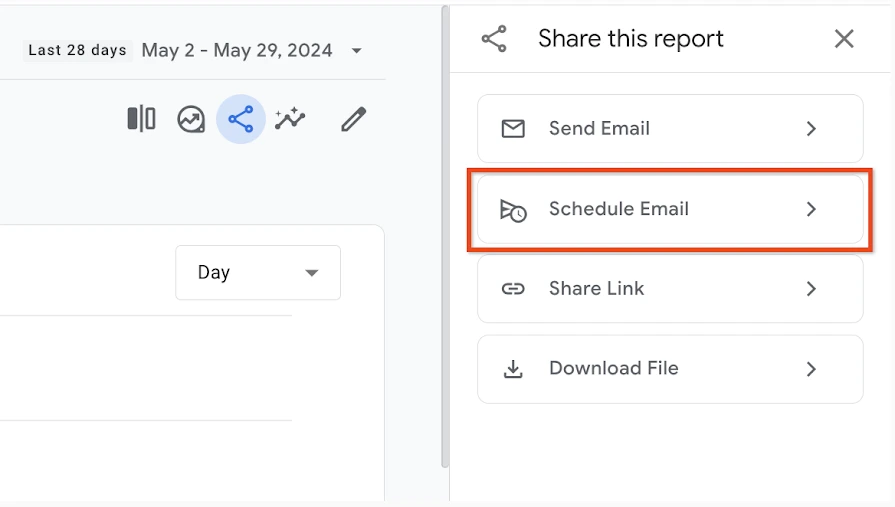
The visible report menu includes Schedule Email, the control used to open the scheduling form. Screenshot source Name and describe the email
Enter a report name that is unique within the property. This name appears in the email subject in the format “GA4 Scheduled Email: report name”. Add an internal description to help other property users understand what data the email contains. Keep the description specific to the report and its configured scope.
Choose recipients and the first send date
Select the recipient email addresses. Recipients must be users with access to the property, and the list can contain up to 50 email addresses. You can type an address to find it. Choose a first send date between tomorrow and one year from today. The source notes that if a user has multiple addresses on the property and one is Gmail, delivery goes to that Gmail address regardless of which address you select.
Set frequency and active period
Choose whether the email sends daily, weekly, monthly, or quarterly. Select how long the schedule remains active, from 1 to 12 months. The default is 12 months. Consider processing time when choosing a date near the start of a month: events can take up to 72 hours to process, so the source suggests the fourth day of the month to include late hits from the prior month.
Choose output settings and save
Choose PDF or CSV as the report format, then select the report language. Review the report's date range and any filters or comparisons, since these settings are included in the emailed report as configured when it was first scheduled. Select Save. The form requires a valid name, at least one recipient, a valid date, and a frequency.
How does this Google Analytics 4 setup work in practice?
Worked example: schedule a monthly report for a property team
An administrator wants an executive summary report delivered monthly to coworkers who maintain view access to the Google Analytics property.
| Choice | Why it matters | How to check |
|---|---|---|
| Open the report the team wants to receive before opening its schedule form. | The scheduled email is tied to the selected report and its configuration. | The report title and any intended filters or comparisons are visible before scheduling. |
| Choose a unique name and describe the report's scope. | The name appears in the subject, while the description helps recipients understand the contents. | The name is unique in the property and the description matches the selected report. |
| Select property users as recipients and choose a valid first date. | Recipients must have property access, and the date must be between tomorrow and one year from today. | At least one valid address is selected and the date is in range. |
| Choose monthly frequency, then select PDF or CSV and a language. | These settings define the recurring cadence and the emailed attachment's format and language. | The schedule form shows the requested monthly cadence and output settings. |
Have an administrator review the active configuration in Scheduled emails to confirm delivery status and the assigned recipient list.
How do you verify your result in Google Analytics 4?
The scheduled email sends the selected report as a PDF or CSV attachment on the chosen cadence and dates. Its date range and any filters or comparisons reflect the report configuration captured when it was scheduled. Check the Scheduled emails page if you need to review the schedule's status or manage it.
| Step | What you should see |
|---|---|
| Open the report and scheduling form | The report's scheduling form opens, or you have confirmed the account needs administrator access. |
| Name and describe the email | The report name is unique for the property, and the description explains the report contents to its intended recipients. |
| Choose recipients and the first send date | At least one valid property user is selected, and the first send date falls within the allowed range. |
| Set frequency and active period | The frequency and active period match the intended cadence, and the first date accounts for the reporting needs. |
| Choose output settings and save | The schedule saves successfully. To review it later, an administrator can open Admin > Property > Scheduled emails and inspect its frequency, format, and status. |
Related Google Analytics 4 guides include Compare date ranges in Google Analytics reports and Find GA4 events in DebugView.
Which official Google Analytics 4 sources were checked?
Every step and limit in this Google Analytics 4 guide was verified against official documentation on 21 Nov 2026 following how we check figures, alongside more walkthroughs in our Google Analytics 4 tutorials hub:
How do you troubleshoot common Google Analytics 4 issues?
Why is Schedule Email missing from the report menu?
The source says only administrators can schedule emailed reports. Confirm your property role with an administrator.
Why will the form not save?
Saving requires at least one valid recipient, a valid unique name, a date within the allowed range, and a frequency. Review each required selection and correct any missing or invalid value.
Why might a report scheduled for the first of the month omit recent data?
Events can take up to 72 hours to process. The source suggests choosing the fourth day of the month when the goal is to include late hits from the previous month.
 Reviewed byDanny Kirk
Founder of ReddiReach.
 Checked byAndrés Felipe
Digital designer and marketer.
Every figure is checked against the vendor's own page. Read our editorial standards.