
Key Takeaways
- Collect actionable optimization suggestions in Semrush On Page SEO Checker by pairing target website landing pages with specific keyword queries.
- Prepare a Semrush project alongside identified priority landing pages and target search queries matched to your intended audience location.
- Execute four structured steps to access the tool, configure search geography, import target page and keyword pairs, and trigger idea collection.
- Verify optimization collection by reviewing the Semrush Overview and Optimization Ideas reports to confirm recommendations populate across all submitted pages.
Semrush On Page SEO Checker generates actionable optimization ideas by analyzing your landing pages against top organic competitors for target keywords. Configuring location targeting and page keyword pairings delivers tailored recommendations for content, technical SEO, and internal linking.
For plan limits and team seat pricing behind this workflow, read our Semrush review or connect Semrush to AI agents in Semrush API and MCP.
Key steps
What do you need before starting in Semrush?
Semrush requires the following workspace setup before you begin:
- A Semrush project for the website you want to optimize.
- The target location and device for your search audience.
- Landing pages and corresponding keywords, or suitable data available through an import option.
How do you complete the steps in Semrush?
Follow these 4 steps in Semrush in order:
Open the checker and set targeting
In Semrush, open your website’s project and choose “On Page SEO Checker.” In the setup wizard, select the target location at country, region, or city level, then choose desktop or mobile phone. Set the language if the location offers that option. Choose carefully because the campaign’s location and device are fixed after it starts.
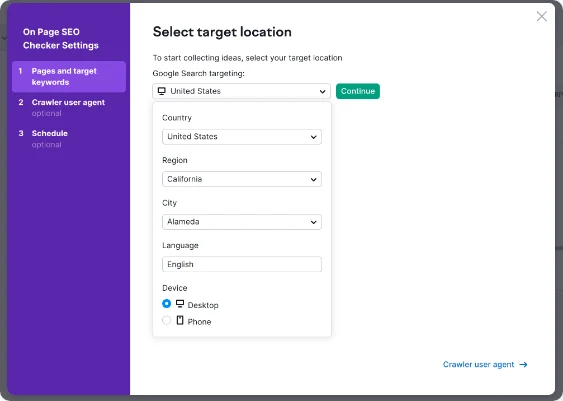
Set the campaign’s location and device before adding target pages. Screenshot source Choose how to add pages and keywords
Use “Auto Import” to pull suggested pages and keywords from Organic Positions and, when available in the same folder, Position Tracking. This can surface pages ranking from positions 11 to 100. Or choose “Manually” to enter a landing page and its target keywords, “File” to upload a CSV, “From GSC” to use Google Search Console data, or “Organic Research” to select pages and keywords from Semrush’s organic rankings data.
For example, to focus on a page already ranking on Google’s second page, use “Organic Research” and set the position range to 11–20. With manual entry, assign each target keyword to only one landing page.
Use “Auto Import” when you want suggestions from existing Organic Positions data and, if available in the same folder, Position Tracking. It surfaces pages ranking from positions 11 to 100, which can help identify candidates for improvement, but it will not necessarily include every page you want to assess. Use “Manually” or another available import option for a deliberate page that is missing.
For a manual keyword-to-page assignment, decide which single page should serve each target keyword before adding it. Semrush does not allow the same keyword on multiple landing pages because competing pages can split relevance. Check the setup list for duplicate keyword assignments, and use distinct, closely related terms when two pages genuinely serve different search needs.
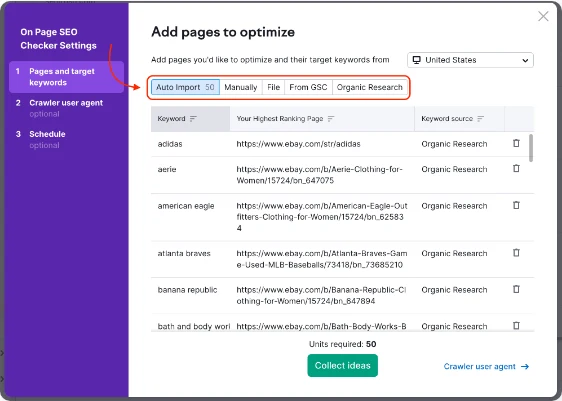
Choose an import method to populate landing pages and target keywords. Screenshot source Review the campaign size and collect ideas
Check the unit total shown above “Collect ideas.” Keywords from each import method count toward the total, so remove rows you do not want to include before continuing. When the page list is ready, select “Collect ideas” to start the campaign.
Choose crawler and refresh options
If the wizard offers crawler settings, keep the default unless your site blocks the Semrush Bot in robots.txt. In that case, choose “GoogleBot.” Then choose whether ideas should be collected again weekly or never. Weekly collection runs every Monday. You can also request an email update after a scheduled crawl.
Choose “GoogleBot” only when the Semrush Bot is blocked by your robots.txt, as described in the setup guidance. Otherwise, keep the default crawler. After choosing the re-collection preference, consider the tradeoff: weekly collection refreshes ideas on Mondays, while “never” avoids recurring collection but leaves you to revisit the campaign when you want updated ideas.
How does this Semrush setup work in practice?
Worked example: choose pages for a home office furniture store
An online retail store wants optimization ideas for an ergonomic desk page and a standing desk page without creating keyword overlap.
| Choice | Why it matters | How to check |
|---|---|---|
| Set the target location to the store’s primary market and choose mobile phone if mobile searches are the focus. | The location and device determine which search results and competitors inform the ideas. This campaign cannot change them after it starts. | Verify location, device, and any available language choice before proceeding. |
| Use “Auto Import” to find eligible pages ranking from positions 11 to 100, then add a deliberately chosen page manually if it is absent. | Auto Import can find improvement candidates, while manual entry covers a specific page outside those suggestions. | Confirm each listed URL is the intended landing page. |
| Assign “ergonomic desk” to the ergonomic desk page and “standing desk” to the standing desk page. | Each keyword has one landing page, reducing the risk of the site’s pages competing for the same query. | Review the setup list and ensure neither exact keyword appears against both pages. |
| Review the unit total and remove unwanted rows before selecting “Collect ideas.” | Imported rows count toward the campaign total, so pruning irrelevant pairs keeps the campaign focused. | Compare the final page and keyword list with the planned assignments and confirm the displayed total. |
Review collected ideas as page-specific recommendations rather than automatic site adjustments, prioritizing changes that enhance search intent.
How do you verify your result in Semrush?
Confirm that the Overview report displays suggested ideas for your landing pages. Use the Optimization Ideas report to decide which page recommendations to review first.
| Step | What you should see |
|---|---|
| Open the checker and set targeting | The setup screen shows your intended target location and device before you move on. |
| Choose how to add pages and keywords | The page and keyword pairs appear in the campaign setup list without a keyword assigned to multiple pages. |
| Review the campaign size and collect ideas | The checker leaves setup and opens the campaign’s Overview report. |
| Choose crawler and refresh options | Your chosen crawler and re-collection preferences are saved, or the optional settings remain at their defaults. |
Related Semrush guides include How to add competitors in Semrush Position Tracking and How to build a Semrush My Reports report from a template.
Which official Semrush sources were checked?
Every step and limit in this Semrush guide was verified against official documentation on 21 Nov 2026 following how we check figures, alongside more walkthroughs in our Semrush tutorials hub:
How do you troubleshoot common Semrush issues?
Can I change the location or device after the campaign starts?
No. Semrush says campaign targeting cannot be changed after it is running. Confirm your location and desktop or mobile selection before collecting ideas.
Why are some pages missing from Auto Import?
Auto Import uses Organic Positions data and a Position Tracking campaign in the same folder, when available, to suggest pages ranking from positions 11 to 100. Add a page manually or use another import option if it is not listed.
Why is a keyword rejected for a second landing page?
Semrush prevents the same keyword from being targeted by more than one landing page in the setup because the pages could compete for the same traffic. Choose the page that best satisfies that query, or use a distinct keyword for a page with a different search intent.
 Reviewed byDanny Kirk
Founder of ReddiReach.
 Checked byAndrés Felipe
Digital designer and marketer.
Every figure is checked against the vendor's own page. Read our editorial standards.