
Key Takeaways
- Enter exact terms into Slack Channel keywords preferences to trigger immediate desktop alerts and yellow highlights across joined channels.
- Join all relevant public or private Slack channels where keyword tracking is needed prior to testing notification trigger phrases.
- Complete four steps navigating to notification preferences, locating Channel keywords, inputting distinctive words or phrases, and verifying scope.
- Verify keyword alerting by posting a test phrase in a joined channel to check that Slack triggers a badge and yellow highlight.
Configure Slack Channel keywords preferences to receive notifications and highlighted text whenever specific project terms appear in joined conversations. This setting alerts you to relevant discussions without requiring constant manual channel monitoring.
For plan limits and team seat pricing behind this workflow, read our Slack review or connect Slack to AI agents in Slack API and MCP.
Key steps
What do you need before starting in Slack?
Slack requires the following workspace setup before you begin:
- Sign in to the Slack workspace where you want to receive keyword alerts.
- Join the channels where you want Slack to check for matching messages.
How do you complete the steps in Slack?
Follow these 4 steps in Slack in order:
Open notification preferences
In Slack desktop, click your profile picture in the sidebar and select Preferences. Click Notifications to open your notification settings.
Find Channel keywords
Scroll down the Notifications page to the Channel keywords section. This is where you enter the words or phrases Slack should watch for in channels you’ve joined.
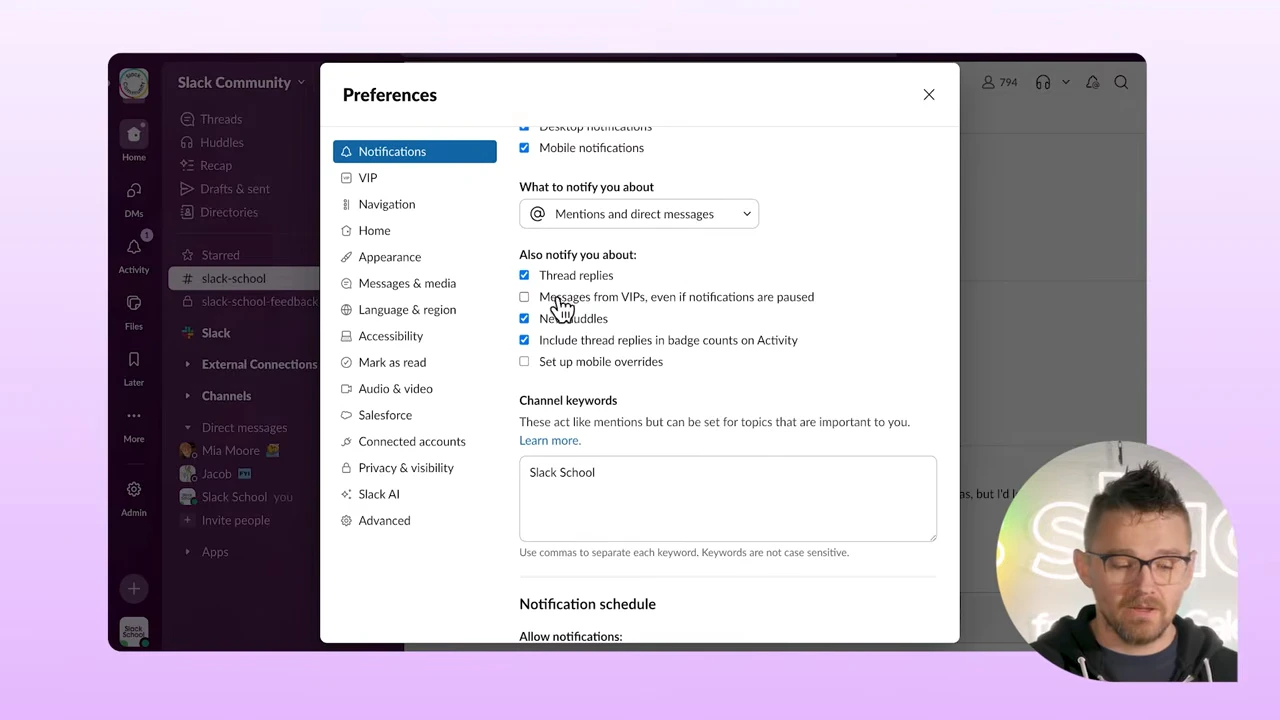
In Preferences, open Notifications and scroll to Channel keywords. This is where you enter the words you want Slack to flag. Screenshot source Enter useful keywords or phrases
Enter a word or phrase that would be useful to catch in a conversation. For example, if you want to follow mentions of a product launch, add its distinctive product name and a phrase such as “launch date.” Keep phrases specific enough to avoid alerts for unrelated discussion. Slack’s current help article says keywords are not case-sensitive, but only exact matches trigger notifications.
Choose terms people are likely to type as written. For a project discussed as both “Northstar” and “North Star,” add each form separately because matching requires an exact match even though capitalization does not matter. If a phrase is too broad, narrow it to a distinctive name or wording. Broader terms may catch more unrelated conversation. After adding terms, review the list for duplicates and spelling variants.
Check where keyword alerts apply
Review the channels you’ve joined where the topic is likely to come up. Keyword alerts apply to matching messages in those channels. A message in a thread you’re not following won’t trigger a keyword notification, so follow the thread if you need alerts from its replies.
Check channel membership against the scope you need: keyword notifications apply in channels you’ve joined, and Slack’s help says keywords in thread messages won’t trigger a notification. If an important discussion is happening in a thread, follow that thread for replies. Keyword alerts and thread-following notifications cover different cases.
How does this Slack setup work in practice?
Worked example: track a product launch without alerting on every launch discussion
A product manager wants to monitor launch updates across multiple project channels while filtering out broad conversational noise.
| Choice | Why it matters | How to check |
|---|---|---|
| Add “Northstar” | The distinctive product name is more likely to signal the specific launch than a generic term. | Confirm the spelling matches the name teammates use in messages. |
| Add “North Star” as a separate phrase | Some teammates may write the name as two words. Slack does not automatically match different forms. | Both forms appear in Channel keywords. |
| Skip the broad term “launch” | It may match many unrelated projects and create more interruptions than useful leads. | Review the list and remove any generic term that is not serving the tracking goal. |
| Join the product and release channels, and follow key threads | Channel keywords cover joined channels, while thread replies require following the thread to receive thread notifications. | Verify channel membership and follow the specific thread where replies matter. |
Check that notifications trigger only on exact matching phrases within joined channels, refining the keyword list if unrelated alerts occur.
How do you verify your result in Slack?
The keyword list is visible under Channel keywords in Preferences → Notifications. When someone posts an exact keyword match in a channel you’ve joined, Slack can notify you and highlight the keyword in yellow. Use the preference list to adjust terms if you’re missing relevant mentions or seeing too many unrelated ones.
| Step | What you should see |
|---|---|
| Open notification preferences | The Notifications preferences page is open. |
| Find Channel keywords | The Channel keywords field is visible. |
| Enter useful keywords or phrases | Your chosen terms appear in the Channel keywords field. |
| Check where keyword alerts apply | You’re a member of the channels you want monitored, and you know that unfollowed thread replies won’t alert you. |
Related Slack guides include How to build a Slack request workflow with a form and How to find a past message with Slack search modifiers.
Which official Slack sources were checked?
Every step and limit in this Slack guide was verified against official documentation on 21 Nov 2026 following how we check figures, alongside more walkthroughs in our Slack tutorials hub:
How do you troubleshoot common Slack issues?
Does Slack match different forms of a keyword automatically?
Slack’s help article says matching is not case-sensitive, but only exact matches trigger a notification. Add the wording or phrase you expect people to use for each keyword alert.
Why didn’t a keyword in a thread alert me?
Slack says keywords in messages sent in threads you’re not following won’t trigger a notification. Follow the thread if you want notifications for its replies.
Why do I see the keyword highlighted but not get a banner?
Slack describes keyword matches as producing a notification and highlighting the keyword, but the banner you see can depend on your notification setup and whether notifications are paused. Check Slack’s notification preferences and schedule, then check the channel message for the highlighted match.
 Reviewed byDanny Kirk
Founder of ReddiReach.
 Checked byAndrés Felipe
Digital designer and marketer.
Every figure is checked against the vendor's own page. Read our editorial standards.