
Key Takeaways
- Google Analytics lets property editors and administrators configure which primary dimension loads first whenever any user opens a saved detail report.
- You can only modify default dimensions inside detail reports showing Report data, because overview reports display Cards and do not support dimension pickers.
- If your target dimension is missing from the current picker list, use Add dimension inside the Dimensions panel before assigning it as default.
- Verify the update by clicking Apply, choosing Save changes to current report, exiting the view, and reopening the report without touching the dropdown.
Set a default dimension in a Google Analytics detail report by opening report customization, editing Dimensions under Report data, selecting Set as default on your preferred dimension, and saving changes to the current report. This configuration makes your chosen primary dimension load automatically for every property viewer while keeping alternate dimensions selectable in the table picker.
For plan limits and team seat pricing behind this workflow, read our Google Analytics 4 review or connect Google Analytics 4 to AI agents in Google Analytics 4 API and MCP.
Key steps
What do you need before starting in Google Analytics 4?
Google Analytics 4 requires the following workspace setup before you begin:
- Editor or Administrator role access in the Google Analytics property to customize and save shared detail reports.
- An open Google Analytics detail report; overview reports display a Cards section instead of Report data and cannot use this dimension workflow.
- The exact name of the dimension you want shown first, plus confirmation of which current default dimension your team relies on before you overwrite it.
How do you complete the steps in Google Analytics 4?
Follow these 5 steps in Google Analytics 4 in order:
Open customization for the detail report
Navigate to the Google Analytics detail report you want to update and select the customization control in the top right corner of the workspace. Before making edits to a shared report that multiple departments consult, write down the dimension currently displayed first in the table dropdown so you can restore the original layout if needed. If the customization control is missing from the top right header, check your property permissions, because Viewer and Analyst roles cannot alter saved report structures and require an Editor or Administrator to make the change.
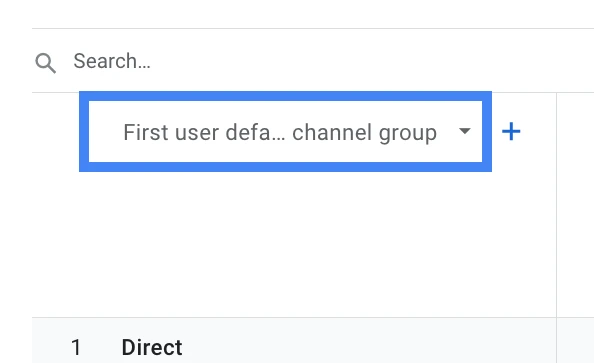
This screenshot shows the report area and a visible dimension picker variant, not the customization panel. Screenshot source Open the Dimensions settings
Locate the Report data section inside the customization panel and select Dimensions. Pay close attention to the section headers as soon as the panel loads. If the customization sidebar displays a Cards header instead of Report data, you have opened a summary overview report rather than a tabular detail report. Overview reports aggregate summary widgets and do not use a primary table dimension picker, so exit customization and navigate to a standard detail report before proceeding.
Add the desired dimension if needed
Scan the active dimensions list to see whether your preferred dimension is already included in the report picker. If it is absent, select Add dimension at the bottom of the list; when a report already holds several dimensions, scroll down inside the Dimensions dialog panel to reveal the Add dimension control. Type the dimension name directly into the search field or scroll through the dropdown menu to select it. Adding the dimension places it into the report's available picker pool without yet changing what loads first.
Set the dimension as default
Find your target dimension in the Dimensions list and select Set as default so Google Analytics loads that attribute automatically whenever someone opens the report. While reviewing the list, decide how the remaining options should behave for teammates who switch views manually: drag dimensions up or down to reorder how they appear in the table dropdown, or select Remove next to unused entries to declutter the picker without deleting underlying property data.
Apply and save the report change
Select Apply at the bottom of the customization panel to preview the updated dimension table. Next, open the Save menu in the top right and choose Save changes to current report so the new default persists for everyone accessing this report. Clicking Apply alone only updates your temporary session view and discards the change once you leave. To verify the update cleanly, navigate away to another report, reopen the edited detail report, and inspect the primary dimension dropdown before clicking any table controls.
How does this Google Analytics 4 setup work in practice?
Example: aligning a shared acquisition detail report for a marketing team
A growth marketing editor wants a shared Google Analytics detail report to open directly on the primary dimension the campaign team checks every morning, while keeping existing secondary picker dimensions intact for channel specialists.
| Choice | Why it matters | How to check |
|---|---|---|
| Record the current primary dimension, then open customization and inspect the section header. | Confirming Report data ensures the view is a detail report rather than an overview report with Cards, and noting the prior default allows an easy rollback. | The customization sidebar shows Dimensions under Report data. |
| Scroll down inside the Dimensions panel and use Add dimension to include the campaign team's preferred attribute. | A dimension must exist in the report's picker list before Google Analytics allows marking it as the default. | The newly selected dimension is visible in the active dimensions list. |
| Select Set as default on the target dimension and drag remaining dimensions into a logical dropdown order without clicking Remove. | Setting the default controls the initial table view while preserving alternate picker options for specialists who pivot the table. | The preferred dimension is marked as default and secondary dimensions remain listed. |
| Click Apply, select Save, and choose Save changes to current report, then exit and reopen the report. | Saving to the current report commits the session preview for all property users, and reopening confirms the automatic load state. | Reopening the detail report displays the new default dimension immediately without manual dropdown selection. |
The marketing team's preferred dimension loads immediately whenever anyone opens the detail report, and channel specialists can still switch to alternate dimensions from the table picker.
How do you verify your result in Google Analytics 4?
Every user who opens the saved Google Analytics detail report sees your chosen primary dimension loaded first in the data table, while any additional dimensions left in the list remain available in the dropdown picker for ad-hoc switching.
| Step | What you should see |
|---|---|
| Open customization for the detail report | The report customization panel opens on the right side of the screen. |
| Open the Dimensions settings | The panel displays the report's active dimension list under the Report data section. |
| Add the desired dimension if needed | The desired dimension appears inside the Dimensions panel list. |
| Set the dimension as default | The target dimension displays the default designation inside the Dimensions settings list. |
| Apply and save the report change | The customization is applied, changes to the current report are saved, and reopening the report loads the new default dimension automatically. |
Related Google Analytics 4 guides include Compare date ranges in Google Analytics reports and Find GA4 events in DebugView.
Which official Google Analytics 4 sources were checked?
Every step and limit in this Google Analytics 4 guide was verified against official documentation on 21 Nov 2026 following how we check figures, alongside more walkthroughs in our Google Analytics 4 tutorials hub:
How do you troubleshoot common Google Analytics 4 issues?
Why don't I see the customization option in the top right?
Customizing a Google Analytics detail report requires Editor or Administrator access on the property. If your account already holds one of those roles, verify that you are viewing a customizable detail report rather than a restricted workspace view.
Why do I see Cards instead of Report data in the customization panel?
Seeing a Cards section means you are editing an overview report instead of a detail report. Close the customization panel, open a tabular detail report, and reopen customization to access Dimensions under Report data.
Why isn't the new default dimension appearing for other viewers?
Clicking Apply only previews the dimension change in your active browser session. To make the default permanent for everyone, select Apply, open the Save menu, and choose Save changes to current report.
Where is the Add dimension button if I only see existing dimensions?
When a detail report already includes multiple dimensions, the Add dimension control can sit below the visible area of the Dimensions dialog. Scroll down inside that right-hand panel to reveal Add dimension.
 Reviewed byDanny Kirk
Founder of ReddiReach.
 Checked byAndrés Felipe
Digital designer and marketer.
Every figure is checked against the vendor's own page. Read our editorial standards.