
Key Takeaways
- Configure recurring intervals in Asana task due dates to regenerate routine assignments automatically upon each task completion.
- Establish an initial task with an assigned owner and valid due date before applying repetition rules in Asana.
- Follow five steps to access repeat settings, select recurring cadence, define interval bases, evaluate subtasks, and confirm scheduling.
- Verify recurrence by completing the active task in Asana and confirming the subsequent task iteration appears with the correct future date.
Automate recurring routines in Asana by setting tasks to repeat on weekly, monthly, periodic, or custom schedules. Once marked complete, Asana instantly schedules the next occurrence based on your defined interval.
For plan limits and team seat pricing behind this workflow, read our Asana review or connect Asana to AI agents in Asana API and MCP.
Key steps
What do you need before starting in Asana?
Asana requires the following workspace setup before you begin:
- Open the task you want to recur and confirm its due date is set or ready to configure.
- Decide which days and recurrence pattern the task should follow.
- If the task has subtasks, check whether the parent or subtasks will repeat. Do not set both a repeating parent and repeating subtasks, because the subtasks can duplicate exponentially.
How do you complete the steps in Asana?
Follow these 5 steps in Asana in order:
Open the task’s due date
Open the task details and click Due Date. This is where Asana’s recurring-task setup begins. The screenshot shows a project list with task names and a task title that includes “Recurrent Pieces”. It does not expose the recurrence menu itself.
Start from the task that should recur, and verify its identity before changing the schedule.
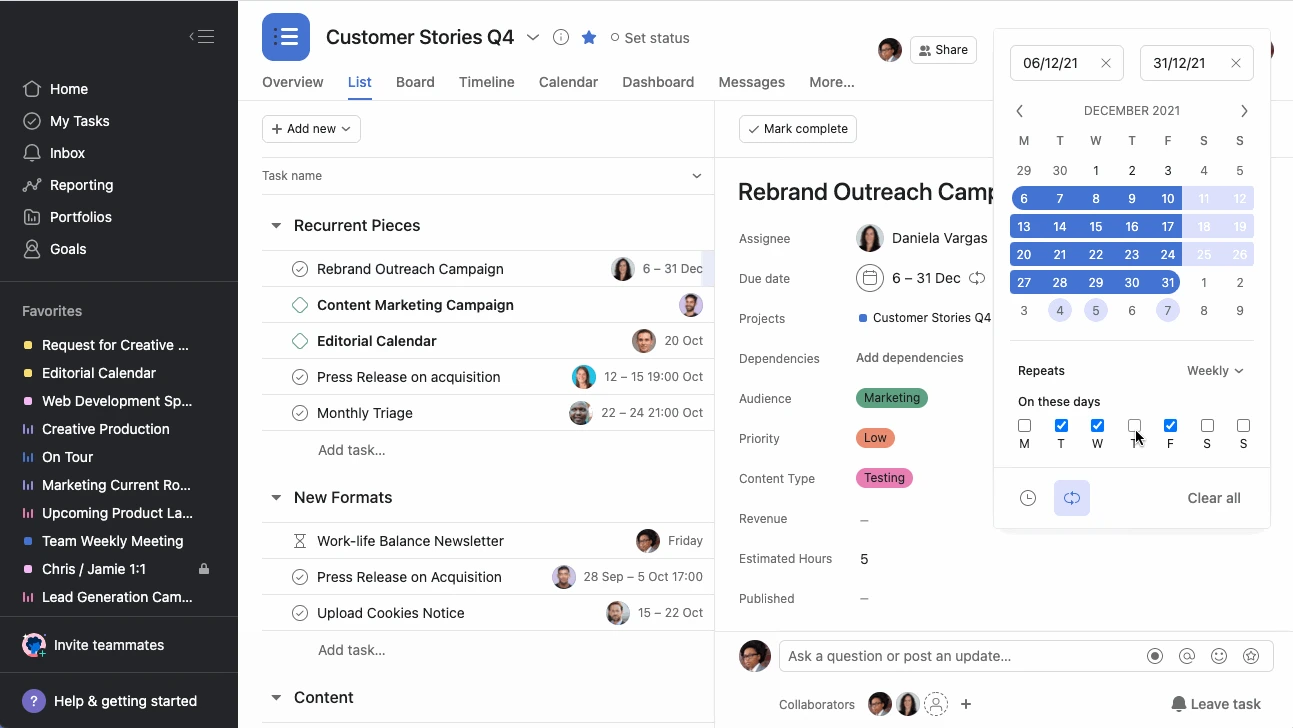
The screenshot shows the task-list context and a recurring-themed task name, not the repeat menu. Open the specific task’s Due Date field to begin. Screenshot source Choose the repeat option
Select Set to repeat from the due date control. This opens the recurrence setup described by the source. If the option is not apparent, first confirm that you are editing the task’s due date rather than another task field.
Choose days and a recurrence basis
Click the days on which the task should recur, then choose a weekly, monthly, yearly, periodic, or customized basis. The available options vary by the schedule you need, so use the choices presented for the actual task rather than assuming a particular frequency control.
For a weekday schedule, the documented approach is Weekly with Monday through Friday selected. For a quarterly schedule, choose Monthly and every three months. For a biannual schedule, choose Monthly and every six months.
Check the task and subtasks
Before finishing, check whether the task is a parent with subtasks. If the parent repeats, leave its subtasks non-repeating. Setting both to repeat can cause repeating subtasks to duplicate exponentially.
Also remember that fields other than task comments, including subtasks, are copied when a recurring task creates its next copy. Consider whether the current task details are appropriate to carry forward.
Confirm how the next occurrence appears
A recurring task appears on the calendar only for the next time it is due, not for every future occurrence. When you mark it completed, Asana duplicates it for the next due time according to the recurrence interval.
For periodic recurrence, the next due date is determined by the date the task was last completed. If you need to stop future recurrence, use the remove-repeat option or remove the task’s due date.
How does this Asana setup work in practice?
Worked example: schedule a weekly editorial review
A content team wants a recurring review task generated every weekday morning to manage incoming editorial submissions.
| Choice | Why it matters | How to check |
|---|---|---|
| Open the editorial review task’s Due Date field. | The recurring schedule is configured from the task’s due date. | The intended review task is selected. |
| Select Set to repeat. | This opens the repeating schedule setup. | The repeat options apply to the review task. |
| Choose Weekly and select Monday, Tuesday, Wednesday, Thursday, and Friday. | The documented weekday pattern uses weekly recurrence with MTWTF selected. | All five intended weekdays are selected. |
| Keep any subtasks non-recurring and inspect the next due occurrence. | This avoids the documented risk of exponentially duplicating repeating subtasks and clarifies what appears next. | Only the intended task repeats, and the next due occurrence matches the plan. |
Confirm whether the recurring task should remain active across the calendar or be paused once the project cycle concludes.
How do you verify your result in Asana?
The task is configured to repeat on the chosen schedule. The calendar shows its next due occurrence. After you complete that task, Asana creates the following copy based on the set interval. Review the task after completion to confirm the next due date is appropriate.
| Step | What you should see |
|---|---|
| Open the task’s due date | The intended task’s due date control is open. |
| Choose the repeat option | The repeat setup is open for the intended task. |
| Choose days and a recurrence basis | The selected days and recurrence basis match the schedule you intend. |
| Check the task and subtasks | The recurrence is set only at the intended task level, and copied task fields are suitable for the next occurrence. |
| Confirm how the next occurrence appears | You know which next occurrence to expect, and the task’s recurrence or stop condition matches your plan. |
Related Asana guides include How to add a custom field to an Asana project and How to add a numeric rollup to a portfolio in Asana.
Which official Asana sources were checked?
Every step and limit in this Asana guide was verified against official documentation on 21 Nov 2026 following how we check figures, alongside more walkthroughs in our Asana tutorials hub:
How do you troubleshoot common Asana issues?
Why do I see only one occurrence on the calendar?
Asana displays the next time the recurring task is due, rather than all future instances. Completing the task creates its next copy.
Why did a recurring subtask duplicate repeatedly?
The source warns that repeating both a parent task and its subtasks can cause the subtasks to duplicate exponentially. Remove recurrence from one level, typically keeping the parent recurring and its subtasks non-recurring.
How do I stop a task from repeating?
Use the remove-repeat option, or remove the task’s due date. Either action stops recurrence according to the source.
 Reviewed byDanny Kirk
Founder of ReddiReach.
 Checked byAndrés Felipe
Digital designer and marketer.
Every figure is checked against the vendor's own page. Read our editorial standards.