
Key Takeaways
- Asana syncs calendars one project at a time through Export/Print > Sync to calendar..., displaying uncompleted tasks and subtasks with due dates as all-day events inside Google Calendar.
- You need access to both the target Asana project and Google Calendar, plus uncompleted tasks assigned specific due dates before any scheduled events appear on your calendar grid.
- The Asana to Google Calendar feed operates strictly one-way: initial subscriptions load instantly, later Asana changes take up to a day to refresh, and Google Calendar edits never update Asana.
- Verify completion by confirming the subscribed calendar shows due-dated tasks as all-day events in Google Calendar and checking that opening an event reveals a direct link back to Asana.
Sync an individual Asana project calendar to Google Calendar by copying the project feed link from **Export/Print** > **Sync to calendar...** and subscribing to it via **From URL**. Uncompleted tasks and subtasks with due dates appear as all-day events in a one-way feed where initial imports happen immediately and later updates take up to a day.
For plan limits and team seat pricing behind this workflow, read our Asana review or connect Asana to AI agents in Asana API and MCP.
Key steps
What do you need before starting in Asana?
Asana requires the following workspace setup before you begin:
- Access to the specific Asana project whose schedule you want to display.
- An active Google Calendar account where you can subscribe to external calendar feeds.
- At least one uncompleted task or subtask with an assigned due date in the Asana project so you can verify that events populate.
How do you complete the steps in Asana?
Follow these 5 steps in Asana in order:
Open the project actions
Navigate to the specific Asana project whose schedule you want visible alongside your meetings in Google Calendar. Open the project actions menu next to the project header, hover over Export/Print, and select Sync to calendar.... Because Asana generates calendar feeds at the individual project level rather than across an entire workspace or portfolio at once, make sure you are inside the exact project you intend to subscribe to, and plan to repeat this workflow separately for any additional projects.
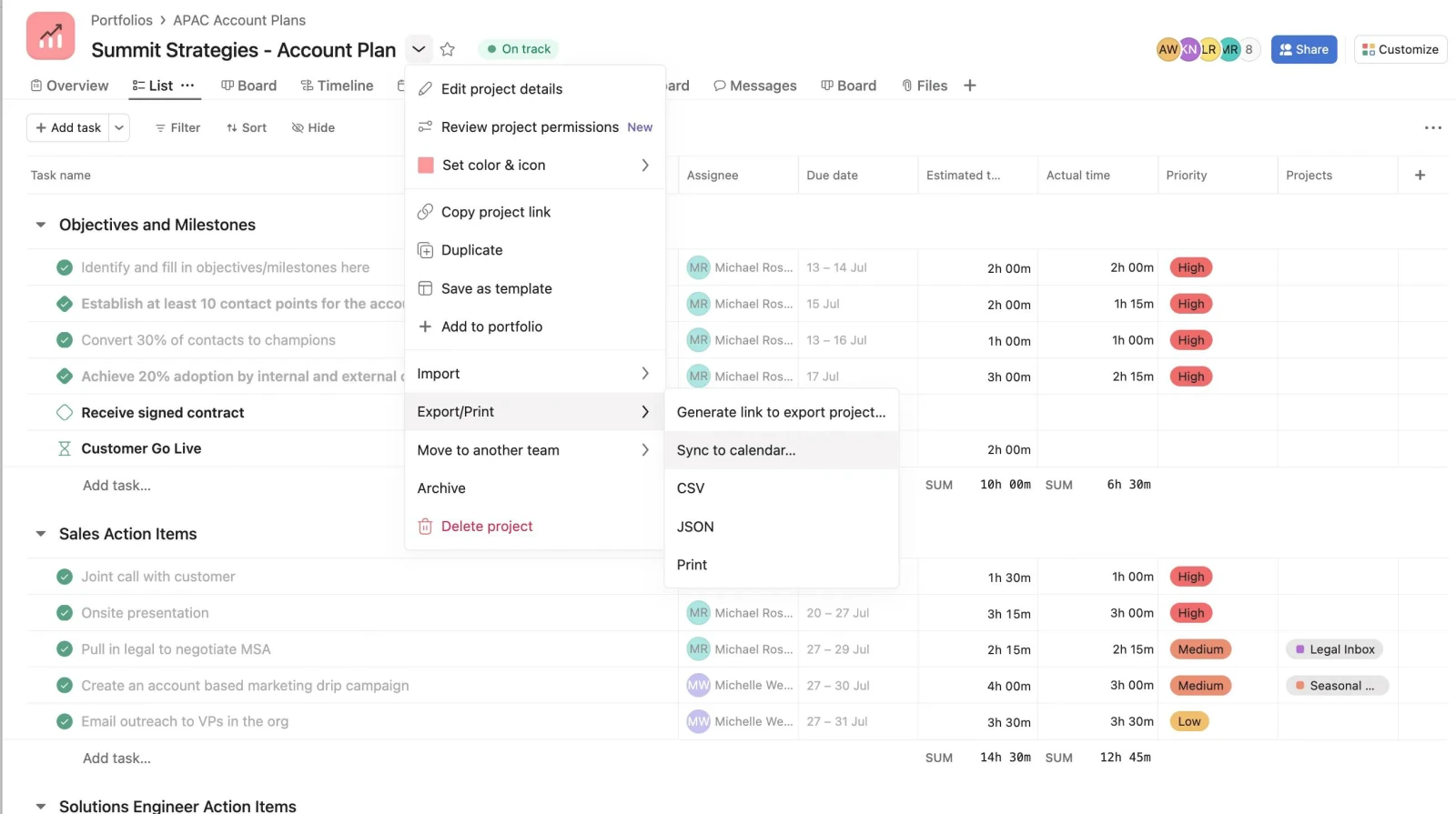
Open the Asana project actions menu and look under Export/Print for the calendar sync option. Screenshot source Copy the Google Calendar feed
Inside the Sync to Calendar popup, select the Google Calendar tab. Highlight and copy the entire feed URL displayed in the field without truncating any characters or trailing parameters. Google Calendar relies on this exact address to authenticate and fetch the project schedule, so copying a partial string will cause the subscription to fail or return an empty feed.
Start adding a calendar in Google Calendar
Switch over to Google Calendar in your browser. Locate the Other calendars section in the left sidebar, click + Other calendars, and select From URL from the menu. Using From URL subscribes Google Calendar to a live external feed rather than importing a static file snapshot, ensuring future due-date additions in Asana continue arriving.
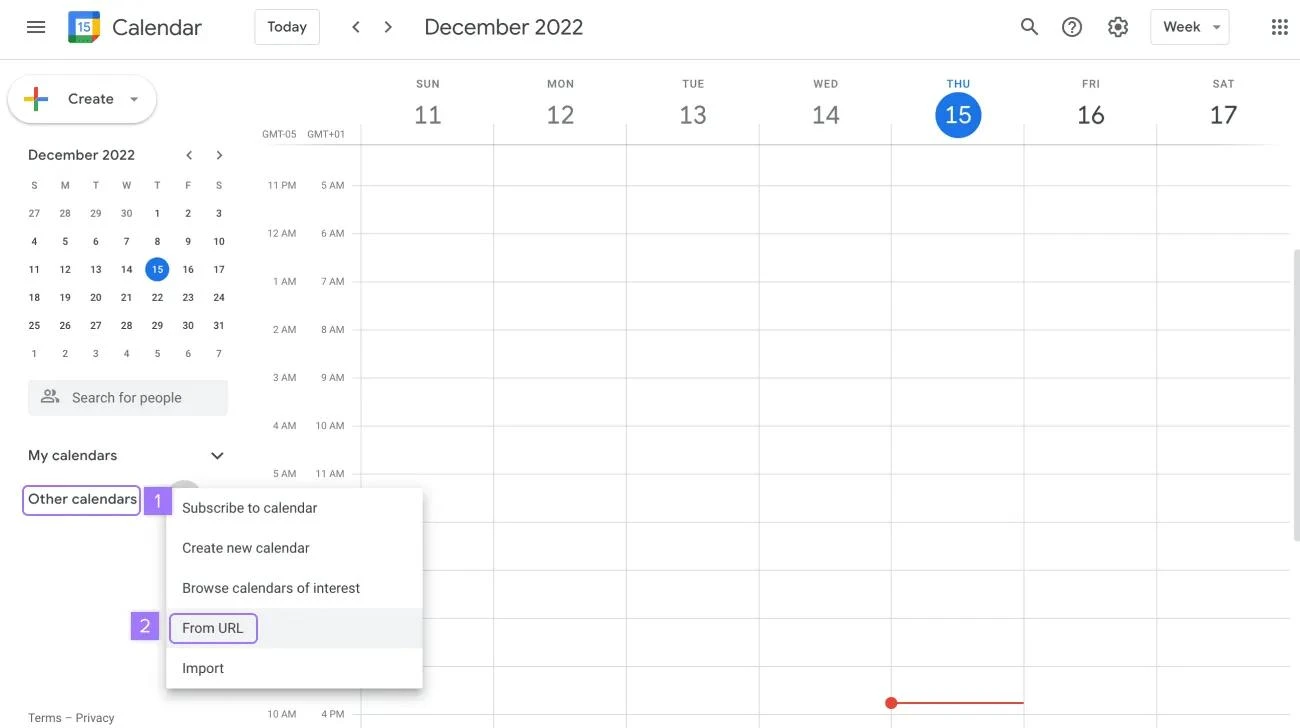
In Google Calendar, the Other calendars menu includes the From URL option. Screenshot source Add the project calendar
Paste the full Asana link into the URL field and click Add calendar. The initial sync runs right away, pulling current project milestones and task deadlines onto your calendar view. Keep in mind that Google Calendar refreshes external URL feeds on its own polling cycle: subsequent syncs can take up to a day, meaning new tasks or rescheduled due dates in Asana will not reflect immediately after your first import.
Review the events and sync scope
Return to your main Google Calendar grid and inspect the newly added project calendar. Every uncompleted task and subtask in that Asana project with a due date appears as an all-day event, and clicking any event provides a direct link back to the source task in Asana. Completed tasks are excluded from the feed, and tasks without due dates will not render on the calendar. Remember that this connection is strictly one-way: dragging an event to a new date or editing its title inside Google Calendar never writes changes back to Asana.
How does this Asana setup work in practice?
Example: syncing a product launch project schedule for a marketing coordinator
A marketing coordinator manages a Q4 product launch project in Asana and wants upcoming asset deadlines visible alongside daily stakeholder meetings in Google Calendar without manually duplicating dates.
| Choice | Why it matters | How to check |
|---|---|---|
| Open the Q4 product launch project and select Export/Print > Sync to calendar... | Asana creates a distinct calendar feed per project, scoping the subscription strictly to launch tasks rather than unrelated team boards. | The Sync to Calendar popup opens specifically for the Q4 product launch project. |
| Copy the full link from the Google Calendar tab and add it via + Other calendars > From URL | Subscribing by URL establishes an ongoing one-way feed in Google Calendar instead of a one-time static export. | Clicking Add calendar immediately adds the launch project under Other calendars. |
| Audit open versus completed launch tasks on the calendar grid | An active task like 'Finalize press kit' with a Friday due date renders as an all-day event, whereas completed tasks and undated backlog items stay hidden. | Open due-dated tasks and subtasks show as all-day events with clickable Asana task links. |
| Update shifting deadlines directly inside Asana rather than Google Calendar | The calendar sync is one-way from Asana to Google Calendar, and subsequent updates take up to a day to propagate. | Deadline edits are saved in Asana, with up to a day allowed for Google Calendar to refresh. |
The coordinator sees active launch deadlines alongside daily meetings in Google Calendar and clicks event links to jump straight into Asana when tasks need status or date updates. If a second campaign project also needs calendar visibility, the coordinator repeats the same URL subscription steps for that separate project.
How do you verify your result in Asana?
Your Google Calendar now subscribes to the selected Asana project feed and displays uncompleted tasks and subtasks with due dates as all-day events containing direct links back to Asana. Completed tasks stay out of the feed, edits made inside Google Calendar do not sync back to Asana, and any task changes made in Asana after the instant initial import can take up to a day to appear.
| Step | What you should see |
|---|---|
| Open the project actions | The Sync to Calendar popup opens on screen for the selected Asana project. |
| Copy the Google Calendar feed | Your clipboard holds the complete, unmodified URL from the Google Calendar tab. |
| Start adding a calendar in Google Calendar | Google Calendar displays the From URL subscription screen with an empty URL input field. |
| Add the project calendar | Google Calendar accepts the feed URL and lists the Asana project under your subscribed calendars. |
| Review the events and sync scope | Uncompleted, due-dated tasks and subtasks appear as all-day events with working Asana task links, while completed or undated tasks remain absent. |
Related Asana guides include How to add a custom field to an Asana project and How to add a numeric rollup to a portfolio in Asana.
Which official Asana sources were checked?
Every step and limit in this Asana guide was verified against official documentation on 21 Nov 2026 following how we check figures, alongside more walkthroughs in our Asana tutorials hub:
How do you troubleshoot common Asana issues?
Why are some Asana project tasks missing from Google Calendar?
Asana only syncs uncompleted tasks and subtasks that have due dates assigned. If a task or subtask is marked complete or lacks a due date in Asana, it will not appear on your Google Calendar.
Why does editing or moving an event in Google Calendar not update the Asana task?
The Asana calendar feed is a one-way connection from Asana to Google Calendar. Any changes you make to event titles, descriptions, or dates inside Google Calendar stay local and never write back to Asana, so always update schedules directly in Asana.
Why is a due date change I just made in Asana not showing up in Google Calendar?
While the initial sync happens right away when you first click Add calendar, subsequent syncs are controlled by Google Calendar and can take up to a day. Wait up to 24 hours before troubleshooting a delayed update.
Can I sync multiple Asana projects to Google Calendar with a single feed link?
No. Asana generates calendar feeds per individual project through Export/Print > Sync to calendar.... To see tasks from multiple projects, copy and add each project URL separately under + Other calendars > From URL.
 Reviewed byDanny Kirk
Founder of ReddiReach.
 Checked byAndrés Felipe
Digital designer and marketer.
Every figure is checked against the vendor's own page. Read our editorial standards.