
Key Takeaways
- Semrush Keyword Strategy Builder groups up to five seed keywords into core topics, pillar pages, and supporting subpage hierarchies.
- A paid Semrush SEO Toolkit subscription and up to five closely related seed phrases are required before starting the workflow.
- The setup requires five distinct steps covering seed entry, hierarchy review, view selection, keyword inspection, and editorial prioritization.
- Review the page-level keyword lists and search volumes in Semrush to verify topical coherence before creating content briefs or drafts.
Semrush Keyword Strategy Builder turns up to five seed keywords into a structured architecture of core topics, pillar pages, and supporting subpages. Review the suggested topical groupings, inspect individual page metrics, and decide which clusters align best with your editorial schedule.
For plan limits and team seat pricing behind this workflow, read our Semrush review or connect Semrush to AI agents in Semrush API and MCP.
Key steps
What do you need before starting in Semrush?
Semrush requires the following workspace setup before you begin:
- Access to Semrush Keyword Strategy Builder. The source describes it as part of a paid SEO Toolkit subscription.
- Up to five seed keywords that represent the subject area you want to plan. Use closely related phrases so the resulting groups are useful to your strategy.
- A clear audience or business goal to help you judge whether a suggested topic is relevant. The tool prioritizes relevance, search volume, keyword difficulty, domain diversity, and SERP features, but your own content fit still matters.
How do you complete the steps in Semrush?
Follow these 5 steps in Semrush in order:
Enter a focused seed set
Open Keyword Strategy Builder and enter up to five seed keywords. Choose terms that describe the area you want to build content around, rather than unrelated topics that would make one plan difficult to interpret.
Select Create to start the structured list. The screenshot shows a seed entry screen with the Create control and an example entry, so use it as a visual reference for this starting point.
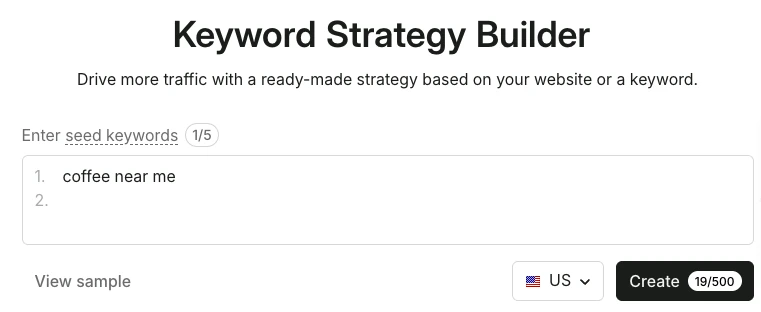
The visible seed entry area and Create control correspond to starting a structured list. Screenshot source Review the topics and page hierarchy
Look at the generated Topics and Pages view or the Topical Overview. Topics group related keywords. A pillar page is a broad hub, while subpages cover narrower subjects and support that pillar.
Treat this as a proposed content map. Check that each topic belongs in your strategy and that subpages make sense under their proposed parent page. The screenshot shows a coffee example with a pillar page and subpages, including keyword, KD, volume, and SERP feature information. The example values are visible interface data, not forecasts for your own seed set.
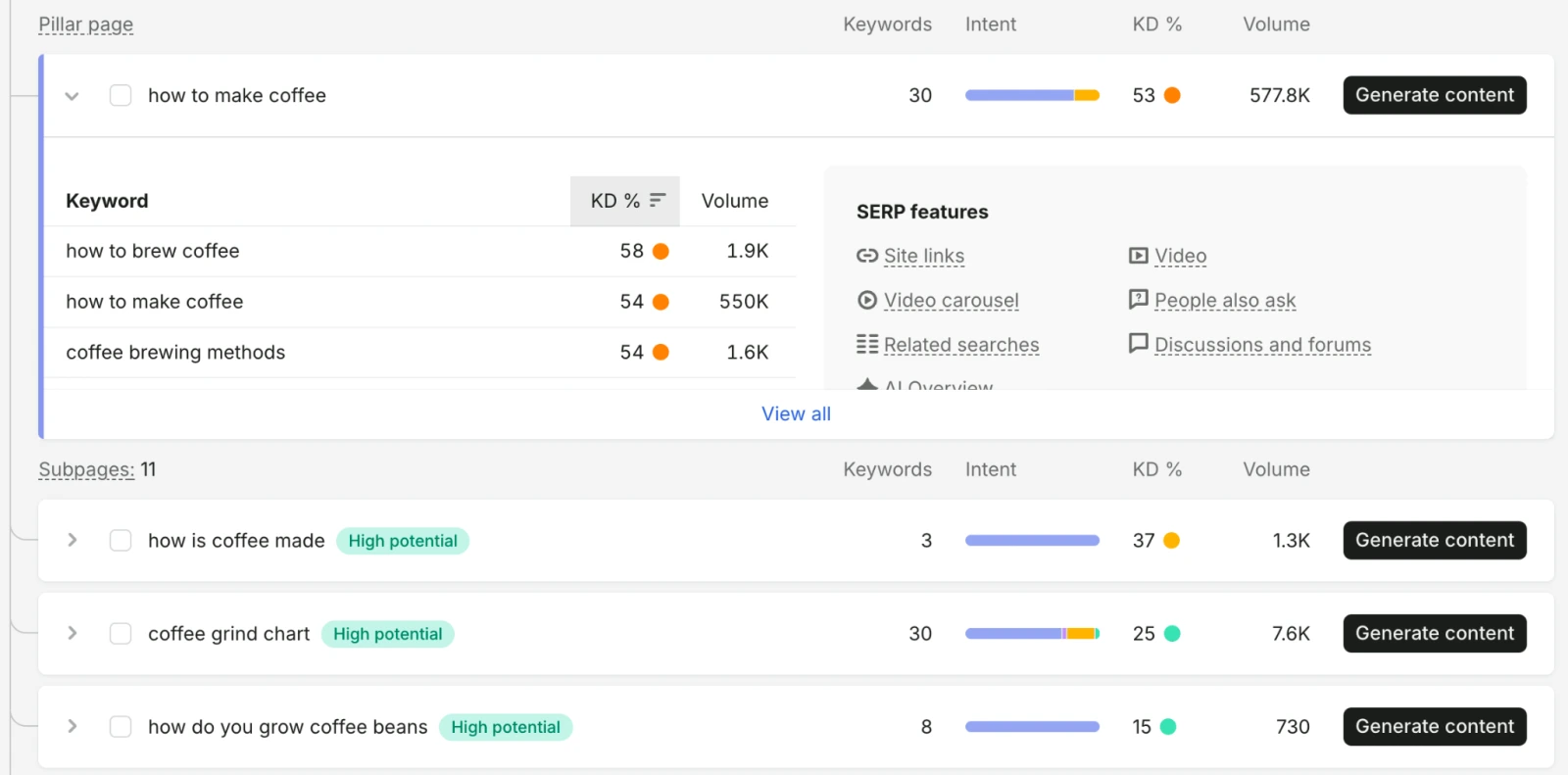
This visible example illustrates a pillar and supporting subpages. The displayed metrics are example interface data. Screenshot source Choose a useful review view
Use Topics and pages to inspect the hierarchy. Switch to Table when you want a flat keyword list and need to compare individual terms across topics and pages.
The two views answer different planning questions: the hierarchy helps you reason about page relationships, while the table makes individual keyword rows easier to scan. Avoid deciding from a single large metric without looking at the context of the page and topic.
Open a page and inspect its keywords
Select a page in Topics and pages to expand its details. Review the keywords assigned to it, including keyword difficulty and search volume, and look at its SERP features and potential SERP competitors.
This is the point to check whether the page grouping is coherent. If several terms describe different user needs, do not assume they belong together simply because they appear under one suggestion. Use the details to decide whether to keep the page concept, narrow it, or reconsider the content plan.
Prioritize, then plan the next action
Try a preset filter to focus the review. Best for Strategy balances volume, difficulty, and relevance; Quick Conversions focuses on transactional or commercial intent; More Potential Traffic focuses on higher search volumes; All Pages returns the full list.
Choose a filter that matches the goal you are evaluating, then compare the resulting suggestions with your audience and resources. When a page is worth pursuing, use the page row’s content generation action to create an article or SEO brief, or use Actions to send keywords to Position Tracking. Those are follow-on actions, not proof that a page is ready to publish.
How does this Semrush setup work in practice?
Worked example: planning a coffee content cluster
An editorial team is organizing educational coffee content across broad fundamentals and specialized brew guides to prioritize their upcoming quarterly publishing calendar.
| Choice | Why it matters | How to check |
|---|---|---|
| Enter a small, related set of coffee seed keywords. | A focused seed set gives the generated structure a clear subject to organize. | Confirm the list was created and inspect the generated topics. |
| Review the suggested coffee pillar page and its supporting subpages. | The hierarchy can show how broad coffee coverage and narrower topics are grouped. | Check that each subpage is meaningfully related to the pillar. |
| Expand one page and inspect its keyword assignments and details. | The assigned terms help determine whether the suggested page has a coherent scope. | Confirm the keywords match one content purpose. Do not treat displayed example metrics as a predicted outcome. |
| Use Best for Strategy to review balanced candidates, then choose one page for an SEO brief. | The preset is described as balancing relevance, volume, and difficulty, while a brief is a concrete planning next step. | Verify the chosen page still fits the publisher’s audience and editorial capacity before generating the brief. |
Editorial leads evaluate the prioritized coffee pages to choose which cluster to draft immediately and which supporting subpages to hold for later production cycles.
How do you verify your result in Semrush?
You now have a structured view of candidate topics, broad pillar pages, and supporting subpages, plus page-level keyword details to guide your review. Use the map to make an editorial decision: which page is most relevant to the strategy, whether its keywords share a coherent subject, and whether it is appropriate to create a brief, draft, or ranking tracking set. Suggestions are planning inputs. They do not establish that a page will rank or deliver a particular amount of traffic.
| Step | What you should see |
|---|---|
| Enter a focused seed set | The list is created from your entered seed terms, and you can see the generated structure. |
| Review the topics and page hierarchy | You can explain the broad subject represented by each pillar and how its listed subpages support it. |
| Choose a useful review view | You have selected the view that matches your current question, and can identify the keywords or pages you need to assess. |
| Open a page and inspect its keywords | The expanded page displays its assigned keywords and page details, and you have a reasoned view of whether they belong together. |
| Prioritize, then plan the next action | You can name the goal behind your selected filter and identify the specific page or keyword group to take forward. |
Related Semrush guides include How to add competitors in Semrush Position Tracking and How to build a Semrush My Reports report from a template.
Which official Semrush sources were checked?
Every step and limit in this Semrush guide was verified against official documentation on 21 Nov 2026 following how we check figures, alongside more walkthroughs in our Semrush tutorials hub:
How do you troubleshoot common Semrush issues?
Why did the tool create topics or pages that do not fit my plan?
The structure is generated from the seed terms and the tool’s prioritization factors. A broad or mixed seed set can produce groupings that need review. Start with a more focused set of related seeds, then inspect the generated page keywords before accepting a page concept.
Should I put every keyword under one page if the tool groups them together?
No. Expand the page and assess whether its terms represent a coherent subject. The detail view helps you see the assigned keywords and related metrics, but the grouping still needs to make sense for your intended content.
Which preset should I use first?
Choose based on the decision you need to make. Use Best for Strategy for a balanced review, Quick Conversions when commercial or transactional intent is the focus, More Potential Traffic when you are exploring higher-volume opportunities, or All Pages to review the complete plan.
 Reviewed byDanny Kirk
Founder of ReddiReach.
 Checked byAndrés Felipe
Digital designer and marketer.
Every figure is checked against the vendor's own page. Read our editorial standards.