
Key Takeaways
- Trello card checklists split individual deliverables into trackable sub-items that update a visual progress percentage as team members complete them.
- An active Trello account with access to a populated board containing an open or newly created card is required.
- The process follows five sequential steps spanning card opening, checklist creation, item entry, sequence reordering, and progress indicator review.
- Verify that ticking off checklist items on the Trello card back immediately updates the green progress indicator to the expected percentage.
Trello card checklists break larger project deliverables into sequential, trackable sub-tasks directly within an open card back. Add individual items manually or paste multi-line text to monitor work progress with an updating percentage bar.
For plan limits and team seat pricing behind this workflow, read our Trello review or connect Trello to AI agents in Trello API and MCP.
Key steps
What do you need before starting in Trello?
Trello requires the following workspace setup before you begin:
- Sign in to Trello and open the board with the target card.
- Open an existing card, or create one for the work you want to break down.
- Write checklist items as small actions that can each be marked complete.
How do you complete the steps in Trello?
Follow these 5 steps in Trello in order:
Open the work card
From the board, open the card that needs a task breakdown. For example, a “Publish newsletter” card could use a checklist for drafting, review, scheduling, and checking the send.
Before building the checklist, decide what the card represents and what counts as finished. For a newsletter card, “send test email” and “approve final copy” are checkable actions; “work on newsletter” is too broad to confirm reliably.
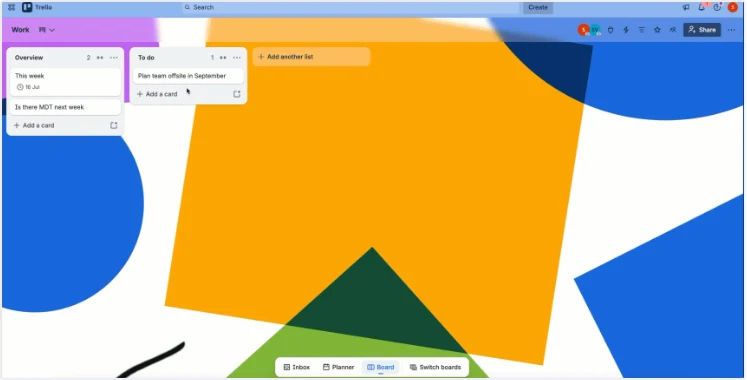
Open the card and use the Checklist control to add a task list. Screenshot source Add a checklist
Select Checklist on the card. Enter a title such as “Publishing steps,” then select Add. If you already maintain a similar checklist on this board, use Copy items from in the checklist dialog to reuse its items.
Use Copy items from when the existing list is still accurate for this card. After copying, scan for steps that depend on a different audience, channel, or approval path, since a reused checklist can make progress look complete while missing a required task.
Add checklist items
Under the checklist, select Add an item, type an action, and press Enter or select Add. Repeat for each task. If your items are already in a text file or spreadsheet, paste them into the Add item field with one item on each line, then press Enter to create separate items.
For a hypothetical launch checklist, paste one action per line, such as “Confirm recipient segment” and “Review test on mobile.” Keep separate decisions on separate lines so one person can complete and verify each item independently.
Reorder or complete items
Drag items to change their order or move them to another checklist on the same card. When a task is finished, select its checkbox. Use Hide checked items if you want completed work out of the way while keeping the remaining tasks visible.
If the order matters, arrange prerequisites first, such as approval before scheduling. Hide checked items during execution when the open work is the priority. Reveal them again when you need to review what was completed.
Review the progress indicator
Return to the board and look at the card front for its checklist count. Open the card to see the checklist progress bar. When all checklist items are complete, Trello turns the count and progress bar green.
How does this Trello setup work in practice?
Worked example: newsletter send checklist
A marketing team is preparing an upcoming subscriber newsletter and wants an organized list of pre-flight checks to catch formatting or link errors before scheduling.
| Choice | Why it matters | How to check |
|---|---|---|
| Confirm recipient segment | The correct audience affects the send and should be settled before final review. | Compare the selected segment with the campaign brief. |
| Approve final copy | Scheduling draft copy creates avoidable rework. | The designated reviewer confirms the current version. |
| Send a test email | A test reveals rendering or link problems before the real send. | Open it on desktop and mobile and follow each link. |
| Schedule the approved send | This depends on copy and test approval being complete. | Reopen the card and confirm the scheduled date and time with the campaign plan. |
The green progress indicator shows all pre-flight items are completed, confirming team members can proceed with scheduling the newsletter send.
How do you verify your result in Trello?
Confirm the checklist title and items on the card back, then check one item to verify the completion state updates. Continue using the checklist to track the card’s remaining work.
| Step | What you should see |
|---|---|
| Open the work card | The card back is open. |
| Add a checklist | A checklist with the chosen title appears on the card. |
| Add checklist items | Each action appears as its own unchecked row. |
| Reorder or complete items | Checked items show as complete, and the remaining work is easy to see. |
| Review the progress indicator | The card displays its checklist count, and the progress bar reflects checked items. |
Related Trello guides include How to add labels to Trello cards and How to attach a file to a Trello card.
Which official Trello sources were checked?
Every step and limit in this Trello guide was verified against official documentation on 21 Nov 2026 following how we check figures, alongside more walkthroughs in our Trello tutorials hub:
How do you troubleshoot common Trello issues?
Can I add several checklist items at once?
Yes. Paste a column or list with one item per line into the Add item field, then press Enter.
Can I recover a deleted checklist item?
No. Trello documents checklist and item deletion as permanent, so use the checkbox to complete an item instead of deleting it when you may need the record.
Why does the checklist count look complete when the work is not finished?
The count reflects checked checklist items, so an item may have been checked before its real-world action was verified. Open the card, review the completed rows against the evidence, and uncheck any item that still needs work.
 Reviewed byDanny Kirk
Founder of ReddiReach.
 Checked byAndrés Felipe
Digital designer and marketer.
Every figure is checked against the vendor's own page. Read our editorial standards.