
Key Takeaways
- Track keyword position movements in Ahrefs Site Explorer by comparing organic search ranking reports across historical calendar intervals.
- Verify access to an Ahrefs plan containing historical data and identify the ranking domain, subfolder, or specific page URL beforehand.
- Work through six analytical steps in Ahrefs Site Explorer to select dates, filter target terms, and open position history graphs.
- Validate rankings in Ahrefs Site Explorer by checking the position chart to confirm whether the expected canonical URL held the rank.
Track historical keyword positions in Ahrefs Site Explorer by evaluating Organic keywords reports across customizable comparison dates. Inspecting the position history chart reveals URL ranking shifts and SERP volatility over time.
For plan limits and team seat pricing behind this workflow, read our Ahrefs review or connect Ahrefs to AI agents in Ahrefs API and MCP.
Key steps
What do you need before starting in Ahrefs?
Ahrefs requires the following workspace setup before you begin:
- An Ahrefs account with access to Site Explorer and the historical data you want to view.
- A domain, subfolder, or URL that ranks for the keyword you want to investigate.
How do you complete the steps in Ahrefs?
Follow these 6 steps in Ahrefs in order:
Open the target in Site Explorer
In Ahrefs, open Site Explorer and enter the domain, subfolder, or exact URL whose rankings you want to inspect. Choose a whole domain for site-wide rankings, or a subfolder or URL to narrow the target.
Match the target scope to the question you are investigating. Use the whole domain to see which pages on the site rank, a subfolder to isolate a section, or an exact URL to check one page. Keep the scope consistent when comparing dates so a change is not caused by looking at a different part of the site.
Go to Organic keywords
In the Site Explorer navigation, open Organic search and choose Organic keywords. The report lists keywords for which Ahrefs finds the target ranking. If you already know the search phrase, use the report’s keyword filter to narrow the list to it.
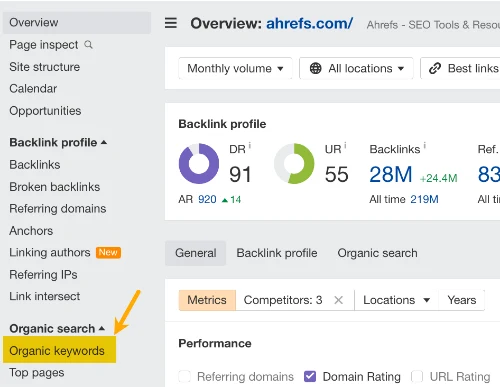
Find the keyword in Organic keywords, then use the report’s date and comparison controls. Screenshot source Choose the periods to compare
Use the date picker and comparison date controls in the report to select the two periods you want to compare. This is useful when you want to check whether a keyword’s position changed between two points, such as before and after a page update. Historical data availability depends on your Ahrefs subscription tier.
Choose dates that bracket a meaningful event, such as a page update, and note the dates before interpreting the movement. If the older date is outside the history available to your subscription, choose an available comparison date and avoid treating it as a full before-and-after view.
Narrow the report if needed
Use the available filters to focus the comparison on the keyword or set of keywords you care about. For one phrase, filter by its text. For a broader review, use relevant keyword filters and inspect the remaining rows.
Open the keyword’s Position history
On the row for the keyword, click its Chart button. Ahrefs opens the Position history graph, showing how pages from the target URL have ranked for that keyword in Google results over time. Use the graph’s duration control to change the period displayed and its page comparison control to adjust how many ranking pages appear.
When the graph shows multiple ranking URLs, check whether the same page appears across the dates you are comparing. A position change paired with a URL change may reflect a different page ranking for the keyword, so investigate both the page and the timing before attributing the movement to an edit.
Read the movement and refine the view
Review the graph’s dates, ranking URLs, and positions to see when rankings changed and which pages appeared. If the graph covers too much or too little time, adjust its duration. To compare the keyword’s historical search results in context, use the row’s SERP control and choose a date in SERP Overview. The available history there is also subject to plan limits.
Use SERP Overview for a selected date when you need to understand which pages appeared alongside your target. Compare the search results for the same keyword and date context. Ranking history describes observed positions, while a historical SERP can help explain what else was present.
How does this Ahrefs setup work in practice?
Worked example: reviewing product page ranking shifts after an update
An SEO specialist evaluates ranking trends in Ahrefs Site Explorer following a significant product page optimization to determine whether target positions improved across primary search terms.
| Choice | Why it matters | How to check |
|---|---|---|
| Enter the product page’s exact URL | The question concerns that page, so a site-wide target could mix in other ranking pages. | Site Explorer displays the exact URL as the target. |
| Open Organic keywords and filter for the target phrase | Filtering focuses the review on the one query tied to the update. | The intended keyword remains in the table. |
| Compare October 11 and October 19, 2026, if available | These illustrative dates bracket the update and allow a short post-change check. | Both selected dates appear in the report. |
| Open Position history and inspect ranking URLs | This shows whether the target URL or another page appears in the observed history. | The graph shows dates, positions, and ranking URLs for the selected period. |
| Review SERP Overview for a comparison date if the page changed | The surrounding search results can provide context for a URL or position change. | The selected date and keyword match the comparison being investigated. |
The position history chart confirms the ranking URL and reveals position movement, helping the specialist determine whether to retain the current page structure or investigate competing URLs.
How do you verify your result in Ahrefs?
Confirm that the Position history graph shows the keyword’s ranking URLs and positions for the selected period. Use the movement you found to decide which ranking page or date range to investigate next.
| Step | What you should see |
|---|---|
| Open the target in Site Explorer | Site Explorer displays the target’s reports. |
| Go to Organic keywords | The Organic keywords table is visible, with the target keyword in the table or filter. |
| Choose the periods to compare | The report shows the selected date and comparison date. |
| Narrow the report if needed | The table contains only the keyword or group you intend to compare. |
| Open the keyword’s Position history | The graph displays ranking URLs and their positions over the selected duration. |
| Read the movement and refine the view | The graph or historical SERP shows the date range and ranking details you need. |
Related Ahrefs guides include Ahrefs Link Intersect guide and Find broken internal links in Ahrefs Site Audit.
Which official Ahrefs sources were checked?
Every step and limit in this Ahrefs guide was verified against official documentation on 21 Nov 2026 following how we check figures, alongside more walkthroughs in our Ahrefs tutorials hub:
How do you troubleshoot common Ahrefs issues?
Why can’t I see older ranking history?
Site Explorer history is limited by your subscription tier. Check the historical data available to your plan and try a date within that range.
Why don’t I see the keyword in Organic keywords?
Site Explorer’s report is populated from Ahrefs’ keyword database. The report may not show every query a site ranks for. Check that you entered the intended domain, subfolder, or URL, and try the relevant filters.
Why does the graph show a different page from the URL I entered?
Site Explorer can show ranking URLs from the selected target, and a domain or subfolder can include several pages. Check the target scope and the URL on each graph point. If you intended to inspect one page, rerun the report with that exact URL.
 Reviewed byDanny Kirk
Founder of ReddiReach.
 Checked byAndrés Felipe
Digital designer and marketer.
Every figure is checked against the vendor's own page. Read our editorial standards.