
Key Takeaways
- Insert bundle filters in the Make Scenario editor by clicking the connecting line between two modules.
- Connect at least two modules first, and install the Make DevTool Chrome extension in Chrome if copying filters.
- Click the connection line, name the filter and map operands, select basic or typed operators, and copy via Make DevTool if needed.
- Verify the filter badge appears on the connection line and confirm non-matching bundles stop during a test run.
You can add conditional filters on the connecting line between Make modules so only bundles meeting your criteria pass to downstream steps. Teams use filters to stop irrelevant messages, empty attachments, or unmatched records early and save operations.
For plan limits and team seat pricing behind this workflow, read our Make review or connect Make to AI agents in Make API and MCP.
Key steps
What do you need before starting in Make?
Make requires the following workspace setup before you begin:
- A Make scenario with at least two connected modules where the preceding module outputs data bundles.
- Google Chrome with the Make DevTool extension installed if you want to copy filters across module connections.
How do you complete the steps in Make?
Follow these 4 steps in Make in order:
Click the connecting line between two modules
Open your workflow in the Scenario editor and click the connecting line between two linked modules (for instance, between Gmail Watch emails and Google Drive Upload a file) to open the filter setup panel.
Each bundle from the preceding module is checked against your filter: matching bundles pass to the next module, while non-matching bundles terminate cleanly.
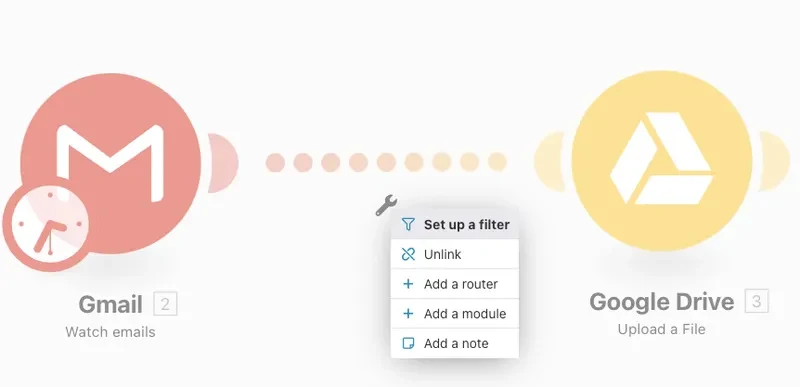
Click the connecting line between two modules on the scenario canvas to open the filter setup panel. Screenshot source Enter a filter label and map bundle operands
Type a clear filter name in the Label input at the top of the filter panel, map an output item from a preceding module (such as Watch emails or Watch posts) into the first operand field, and enter or map a second operand when comparing values.
Descriptive filter names make canvas logic and execution history easy for teammates to read across multi-step scenarios.
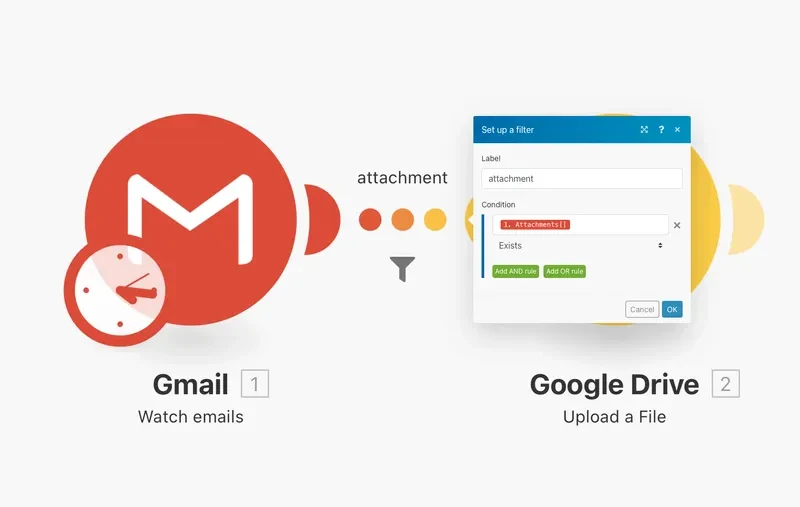
Enter a clear filter name and map the incoming bundle field into the Condition operand box inside the filter panel. Screenshot source Choose Exists, Not exists, or typed comparison operators
Select Exists under basic operators to pass only bundles where the mapped item is populated, or Not exists when that item must be empty. For value comparisons, pick from text, numerical, time and date, or array operators, and add extra conditions as needed.
Using Exists on optional items like file attachments or post photos prevents downstream upload modules from failing on empty fields.
Reuse filters in Chrome with Make DevTool
Open your scenario in Google Chrome with Make DevTool installed and open Developer tools (Ctrl+Shift+I or F12). Click the Make tab, click the Tools icon, select Copy filter, set Source Module (right after the filter to copy) and Target Module (right after where the copied filter should go), and click Run.
Because the Scenario editor lacks native canvas filter copy-paste, Copy filter avoids rebuilding multi-condition logic manually.
How does this Make setup work in practice?
Worked example: Uploading only invoice emails with attachments to Drive
A finance team runs Gmail Watch emails into Google Drive Upload a file and wants only attached invoices saved.
| Choice | Why it matters | How to check |
|---|---|---|
| Filter placed between Watch emails and Upload a file named Invoice attachments | Checks each incoming email bundle before Google Drive attempts an upload. | Invoice attachments badge appears on the connection line. |
| Attachments item mapped with the basic Exists operator | Stops plain-text emails without files before reaching Upload a file. | Operand 1 maps Attachments paired with Exists. |
| Subject item checked with a text comparison operator for Invoice | Excludes unrelated attachments like newsletter images or calendar files. | Test run uploads invoice PDFs and halts non-invoice emails at the filter. |
Only emails carrying both an attachment and Invoice in the subject pass through to Google Drive.
How do you verify your result in Make?
Run your scenario once with test bundles and click the filter badge on the connection line to verify matching bundles pass and others stop. Next, pair filters with a Flow controls Router when non-matching bundles need an alternate path instead of terminating.
| Step | What you should see |
|---|---|
| Click the connecting line between two modules | The filter setup panel opens above the connecting line between your two modules. |
| Enter a filter label and map bundle operands | The panel displays your custom filter name and mapped bundle token inside the operand field. |
| Choose Exists, Not exists, or typed comparison operators | Saving the panel adds a named filter icon along the connecting line on the canvas. |
| Reuse filters in Chrome with Make DevTool | Clicking Run duplicates the filter onto the connection right before your chosen Target Module. |
Related Make guides include How to branch and order scenario workflows with a router in Make and How to configure and manage scenario webhooks in Make.
Which official Make sources were checked?
Every step and limit in this Make guide was verified against official documentation on 27 Nov 2026 following how we check figures, alongside more walkthroughs in our Make tutorials hub:
How do you troubleshoot common Make issues?
What happens to bundles that fail a filter condition in Make?
When a bundle does not fulfill your filter conditions, Make terminates processing for that bundle at the filter. Subsequent modules do not execute for it, while matching bundles in the same run continue.
Which operator checks if an optional field or attachment is present?
Map the item into the first operand and pick Exists to allow only filled items through, or pick Not exists to pass only empty items. Neither basic operator requires a second operand.
How can I duplicate a filter onto another connection in my scenario?
Native filter copying is not built into the Scenario editor. Use the Make DevTool extension in Chrome (Ctrl+Shift+I or F12 > Make tab > Tools > Copy filter), set Source Module and Target Module, and click Run.
 Reviewed byDanny Kirk
Founder of ReddiReach.
 Checked byAndrés Felipe
Digital designer and marketer.
Every figure is checked against the vendor's own page. Read our editorial standards.