
Key Takeaways
- Trigger scenarios over HTTPS via INSTANT app triggers or Custom webhooks and inspect queues under Webhooks in the left sidebar.
- Keep webhooks attached to a scenario (unused hooks expire after 5 days) and stay under 300 requests per 10 seconds.
- Add an instant or custom webhook, configure ordered or scheduled processing, place Webhook response last, and review Queue and Logs.
- Verify under Webhooks > Logs > Detail that test requests parse cleanly and return HTTP 200 responses.
You can trigger Make scenarios over HTTPS immediately or on a schedule using app-specific instant triggers and custom webhooks. Automation teams configure ordered processing, final webhook responses, and queue monitoring to handle incoming payloads without dropping calls or hiding errors.
For plan limits and team seat pricing behind this workflow, read our Make review or connect Make to AI agents in Make API and MCP.
Key steps
What do you need before starting in Make?
Make requires the following workspace setup before you begin:
- An active Make scenario connected to your webhook, as webhooks disconnected for over 5 days (120 hours) deactivate with 410 Gone.
- An external sender staying within Make's rate limit of 300 incoming requests per 10-second interval.
How do you complete the steps in Make?
Follow these 4 steps in Make in order:
Add an INSTANT app trigger or Custom webhooks module
Open your scenario in Make and choose a module marked INSTANT in an app's module list, or add Webhooks > Custom webhooks to generate an HTTPS endpoint that accepts arbitrary data.
Unlike polling triggers, webhooks push each incoming request straight into that webhook's dedicated queue. Custom webhook settings can only be edited when using the Custom webhooks module.

Look for the INSTANT label next to a trigger module to identify app-specific webhooks that execute scenarios on incoming events. Screenshot source Set sequential execution or scheduled batch processing
Instant webhooks run in parallel by default (click running runs in scenario detail, marked with an eye icon, to inspect them), or open scenario settings and select Process data in order for strict arrival-order execution. For periodic batching, edit scenario or webhook schedule settings and set Maximum number of results (or Maximum number of cycles on instant triggers).
Scheduled runs default to 2 items per trigger; raise that limit or schedule frequency so your queue stays under your cap (667 items per 10,000 monthly credits, max 10,000) and avoids 400 Queue is full rejections.
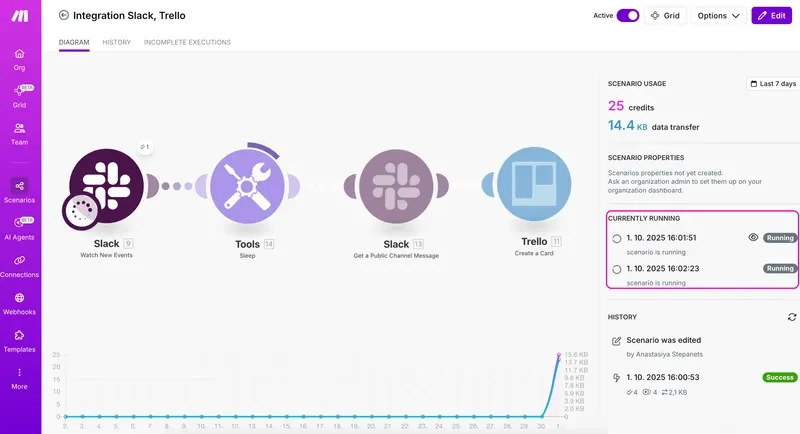
Click any entry in the running executions list inside scenario details and check the eye icon to inspect that execution. Screenshot source Place the Webhook response module at the end of the flow
Without a response module, Make returns 200 Accepted by default; to send custom status codes, headers, or bodies, place the Webhook response module as the very last step in your scenario.
Never put Webhook response in the middle of a scenario: errors in later modules will not deactivate the scenario or notify you, which can consume extra credits silently.
Monitor and clear items in Webhooks Queue and Logs
Click Webhooks in the left sidebar (or via the three-dot menu on smaller screens), select your webhook, and open Queue to click Detail or tick entries for Delete selected / Delete all > Delete. Open Logs, filter by status or date via filter icons, sort with the arrow icon, and click Detail.
Queued payloads persist regardless of confidential data settings until processed, then delete permanently. Logs stay for 3 days (30 days on Enterprise) and show request, response, and combined parsed bundles.
How does this Make setup work in practice?
Worked example: Sequential checkout webhook with custom JSON confirmation
An ecommerce team receives ordered Created, Paid, and Shipped callbacks from checkout and must return a JSON receipt.
| Choice | Why it matters | How to check |
|---|---|---|
| Webhooks > Custom webhooks with Process data in order enabled | Guarantees Paid never finishes before Created during rapid webhook bursts. | Scenario settings show Process data in order active. |
| Webhook response placed as the final module after fulfillment steps | Sends a custom 200 JSON body after updates succeed without masking module errors. | Webhook response is the last module on the canvas. |
| Webhooks > Logs filtered by error status during rollout | Catches malformed payloads or 429 rate spikes within the 3-day log window. | Logs show 200 responses and Queue stays empty. |
Order events run strictly in arrival sequence, checkout gets its JSON confirmation, and processed items clear immediately.
How do you verify your result in Make?
Send a test HTTPS payload and open Webhooks in the left sidebar to confirm the Queue drains and Logs > Detail shows a 200 status and parsed bundle. Next, add error handling, as unhandled errors stop Immediate scenarios right away and scheduled webhook scenarios after 3 failed attempts.
| Step | What you should see |
|---|---|
| Add an INSTANT app trigger or Custom webhooks module | Your scenario starts with an INSTANT trigger or Custom webhooks module tied to its own queue. |
| Set sequential execution or scheduled batch processing | Scenario settings reflect either immediate execution (parallel or Process data in order) or a sized batch schedule. |
| Place the Webhook response module at the end of the flow | Webhook response sits at the end of the scenario chain so any preceding error still triggers alerts. |
| Monitor and clear items in Webhooks Queue and Logs | Webhooks > Logs > Detail displays the raw HTTPS request, status code, and parsed bundle. |
Related Make guides include How to add and configure bundle filters between modules in Make and How to branch and order scenario workflows with a router in Make.
Which official Make sources were checked?
Every step and limit in this Make guide was verified against official documentation on 27 Nov 2026 following how we check figures, alongside more walkthroughs in our Make tutorials hub:
How do you troubleshoot common Make issues?
Why is Make returning 429 Too many requests or 400 Queue is full?
Status 429 triggers above 300 incoming requests per 10 seconds (or custom rate limits), while 400 occurs when queued items hit 667 per 10,000 monthly credits (10,000 max). Throttle sender bursts, run schedules more often, or increase Maximum number of results / cycles.
Why does my webhook URL return a 410 Gone error?
Make deactivates webhooks left disconnected from any scenario for over 5 days (120 hours), returning 410 Gone. Keep active webhooks linked to a saved scenario or create a new webhook and update the sender URL.
How do scenario errors behave for instant versus scheduled webhooks?
Without error handlers, a scenario set to Immediately stops on the first error, while a scheduled webhook scenario stops after 3 failed attempts. Keep Webhook response at the end so errors still notify you.
 Reviewed byDanny Kirk
Founder of ReddiReach.
 Checked byAndrés Felipe
Digital designer and marketer.
Every figure is checked against the vendor's own page. Read our editorial standards.